
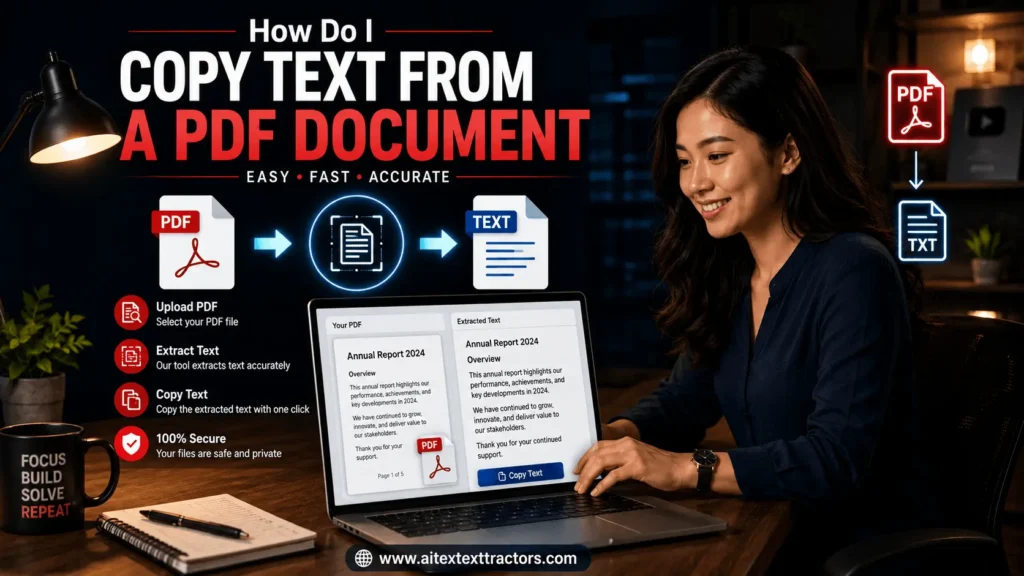
How Do I Copy Text From a PDF Document? A Complete Guide
Yes, you can Copy text from a PDF easily from AI Text Extractor. If you have ever tried to grab a paragraph from a report, an invoice, or an old scanned form and pasted it into an email only to end up with a jumbled mess (or nothing at all), you already know why so many people type the same question into Google every single day: how do I copy text from a PDF document? It sounds like it should be one of the simplest tasks in the digital world, yet PDFs are notorious for being stubborn.
Some let you highlight and copy in seconds. Others behave as if the text is not even there. This guide walks through exactly why that happens and gives you several reliable ways to solve it, whether you are on Windows, Mac, or working entirely inside your browser.
Copying Text from a PDF is not Always Straightforward.
It is important to know the why before getting into the “How. Not all PDFs are created equal, which is why so many people are asking the question: how do I copy text from a PDF document?
There are three common causes:
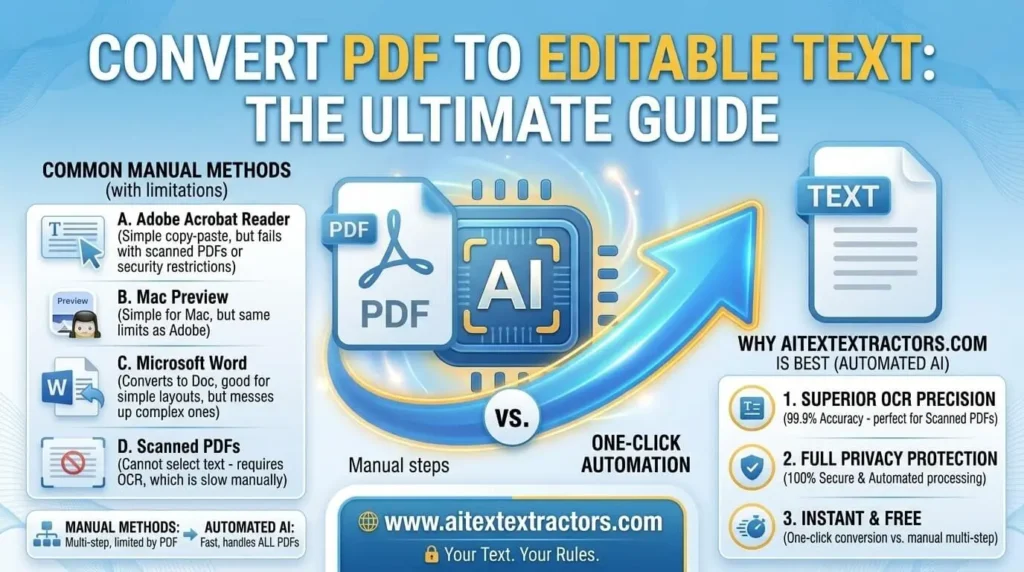
- PDF is not a text file, but rather a scanned image. A paper document is scanned and appears as text, but to the computer it is just a picture. There are no real characters to choose from, so your cursor will not highlight anything and you will have to try again.
- The file has security restrictions. Others are locked by the author to prevent any copying, printing or editing. It is frequently used on e-books, government documents and private business documents.
- Formatting is lost when exported. PDFs created from documents with complex formatting or layouts such as columns, tables, headers etc. may paste as a clumped mass of text with odd line breaks.
However, once you have an idea of which of these situations you are facing, you will understand a lot less frustration when you realize that the solution depends on the situation. Try it Now.
Methods of Copy Text From a PDF Document
Follow the instructions below to view the PDF file using Adobe Acrobat Reader (Windows and Mac).
Method of Copy text from a PDF Document For Windows
If you are interested in how do I copy text from a PDF document on a regular non-scanned file, Adobe’s own software is the most popular solution to this problem and it is actually the simplest.
The following is an overview of the process:
- Open PDF in Adobe Acrobat Reader.
- Click the Select Tool (which may appear as a cursor icon) on the toolbar, or right click anywhere on the page and select it from the right-click menu.
- Select the text you want, as in a word processor, by clicking and dragging. If the selection extends over several pages, you can even drag across several pages.
- Right click on the highlighted text and select Copy (or press Ctrl+C on Windows or Cmd+C on Mac).
- Once you have copied it, paste it into Word, Google Docs, into an email or anywhere else you can use it using Ctrl+V or Cmd+V.
Even before that, it is worth finding out if copying is even permitted. Right click on the document and select Document Properties Security tab. When nothing happens despite careful text selection, “copying is restricted” will be the reason provided for that.
There is also a Snapshot tool in Acrobat Reader’s Edit menu that can be used to capture a section as a picture image instead of text. It enables you to select a box of any part of the page (even diagrams and pictures) and copy it as a picture, which you can paste anywhere else.
Method of Copy text from a PDF Document For Mac
Sometimes, Adobe is not all that Mac users need, as the Preview app can copy text from PDF files just fine. If you want to ask how to copy text from PDF on Mac without downloading any additional software, then this is for you.
- Open the file in the Preview program.
- Be sure the “mark up” toolbar is in view.
- Click the Text Selection tool.
- Select the text that you want, and from the menu at the top, select Edit > Copy.
- To copy a column of text up and down, as in a column in a table, press the Option key and drag.
- Use the Rectangular Selection tool as above when you prefer to select a piece of the page as a picture rather than text.
The answer to this common question how do I copy text from a PDF document I just received by email is available built-in, and generally much quicker than opening a separate application for the sole purpose of answering this same question. It’s also the first thing that people will get to when asked, as it is already on their computer!
Method of Copy text from a PDF Document Through MS Office
If you do not know there is a trick for this. Microsoft Word can open a pdf directly and convert it into a word document that you can edit. This eliminates the copy-paste scenario altogether.
- Open Microsoft Word.
- Click File > Open and then choose the PDF file.
- Word will alert you that it is about to convert the file into an editable document, and may take a second on larger files.
- After conversion, you can select, edit and copy the text just like you would in any standard Word document.
This method is applicable to PDFs that have simple layout containing primarily text. Any text that doesn’t convert is fine, but if you are always wondering how to copy text from a pdf document from a simple report or letter, then this is often the cleanest solution you can find, because you will have an editable copy of the whole pdf document, rather than a highlighted portion of it.
Method of Copy text from a PDF Document For Scanned PDFs
What to Do for copy text from Scanned PDFs? AI Text Extractor is Best method for this. If you have tried highlighting text and nothing happens, there is a good chance the PDF is a scanned image rather than real, selectable text. This is where the question how do I copy text from a PDF document gets a slightly different answer: you need Optical Character Recognition, or OCR.
OCR software scans the image, recognizes the shapes of letters and words, and converts them into an actual, searchable, copy able text layer. Here’s how to approach it:
Adobe Acrobat Pro has a built-in feature under Tools > Recognize Text that scans the document and makes it text-searchable, after which normal copy-paste works as expected.
Free online OCR tools let you upload a scanned PDF and download a version with real, selectable text, no software installation required. These are especially handy for a one-off document when you do not want to install anything.
Google Drive has a quiet but useful trick: upload the scanned PDF, right-click it, choose “Open with Google Docs,” and Drive will automatically run OCR and produce an editable document you can copy from.
Whichever tool you choose, the underlying idea is the same: you cannot copy text that doesn’t technically exist as text yet, so OCR is the real fix for how do I copy text from a PDF document when it’s a scan rather than a digitally created file.
Method for Alternative PDF Readers
Adobe is not the only option, and some free alternatives make copying even simpler. Foxit Reader, for instance, includes a “view as text” mode that strips away formatting and shows the raw text, which you can then copy freely. Tools like PDF-XChange or even browser-based PDF viewers built into Chrome and Edge often support basic click-and-drag text selection too, so if Adobe is not installed on the computer you are using, you still have a path to solving how do I copy text from a PDF document without downloading anything heavy.
Troubleshooting: When Copying Still Does not Work.
If you have tried the obvious steps and you are still stuck trying to figure out how do I copy text from a PDF document, run through this quick checklist:
Check for security restrictions in Document Properties, as mentioned earlier. A password-protected or locked file needs to be unlocked first, and depending on the restriction, you may need permission from whoever created it.
Confirm it is not a scanned image. Try using Ctrl+F to search for a word in the document. If search does not find anything, it is very likely an image-based PDF that needs OCR.
Try copying smaller chunks. Sometimes long selections across pages cause formatting glitches. Copying a paragraph at a time and pasting as you go can avoid a garbled result.
Paste as plain text. In most word processors, using “Paste Special” or “Paste as Plain Text” strips out weird formatting artifacts that often come along with PDF text.
Update your PDF reader. Older versions of Adobe Reader occasionally have bugs with text selection on modern file formats, so an update can quietly fix the problem.
FAQ's
Can I copy text from a PDF on my phone?
Yes. Most mobile PDF apps, including Adobe Acrobat Reader for Android and iOS, support the same tap-and-drag text selection you use in a browser. Tap and hold on a word, drag the handles to extend the selection, then tap Copy. So if you’re wondering how do I copy text from a PDF document while you’re away from your laptop, the mobile app usually covers you.
Why does the pasted text look strange, with random line breaks in the middle of sentences?
This is one of the most common complaints tied to how do I copy text from a PDF document, and it happens because PDFs store text position by position rather than as flowing paragraphs. Pasting into plain text mode, or manually cleaning up line breaks afterward, usually solves it.
Is there a way to copy text without any software at all?
Yes, AI Text Extractor is web-based Tool that allow user to copy text from pdf document without any installation and without any payment. Also many other browsers can open a PDF directly and allow basic selection and copying without installing anything, and free online converters can turn a PDF into an editable Word or text file in a few clicks.
Final Thoughts
At the end of the day, how do I copy text from a PDF document is not really one question, it’s three or four different questions depending on what kind of file you’re dealing with. A normal, digitally created PDF is usually a simple highlight-and-copy job in Adobe Reader, Preview, or even your browser.
A locked PDF needs its permissions checked first. A scanned document needs OCR before any text becomes selectable at all. And a messy, complex layout might be easier to handle by converting the whole file in Word rather than copying piece by piece.
Once you know which category your file falls into, the actual copying takes seconds. So the next time someone asks you how do I copy text from a PDF document, you will know exactly which method fits their situation, and you will be able to walk them through it without any of the guesswork that usually makes this task feel more complicated than it needs to be. You can also try our Signature extractor Tool Free.