
Extract Text from PDF – Free PDF to Text Converter
Got a PDF file that will not let you copy or select text? You are not alone. Most scanned documents, locked reports, and image-based PDFs trap their content as static pixels instead of editable text, making it nearly impossible to copy, search, or reuse. Our free PDF to text converter solves exactly this problem.
Simply upload your file, and our AI-powered OCR engine reads every page and extracts the text instantly, whether it is a scanned invoice, an old contract, a research paper, or a multi-page report. No installation, no signup, and no hidden limits just upload your PDF, and within minute you will have clean, accurate, editable text ready to copy or download.
Click on below Button for PDF to text converter:
Why Use a Free PDF to Text Converter?
A dedicated PDF to text converter tool saves you from tired work of manually retyping content, fixing broken formatting, or relying on unreliable copy-paste. Instead, you get accurate, ready-to-use text in one simple step whatever the source document looks like.
This matters more than people realize. Manually retyping a five-page scanned contract can take twenty to thirty minutes or more, and every retyped number or clause is a chance for a costly mistake. A reliable PDF to text converter removes that risk entirely, turning a manual task into something that takes seconds rather than hours. Whether you are a student, a business owner, or someone digitizing old family records, a good PDF to text converter tool is one of those small tools that quietly saves a huge amount of time.
How to Copy Text from a PDF Document
Probably the most popular problem with PDFs occurs when people attempt to copy the text from the PDF document, but end up with either not being able to select anything at all, or getting gibberish text in return. The problem arises because of the PDF file being an image of text, not actual text itself. But if you’ve ever been frustrated by not being able to copy any text in PDF format, the problem is solved immediately with our service,simply upload the document and let the AI scan the page.
This is exactly why a purpose-built PDF to text converter exists in the first place, a standard PDF reader or browser preview simply is not designed to recognize text inside an image, no matter how many times you try to highlight and copy it.
How to Convert a PDF File into a Text File
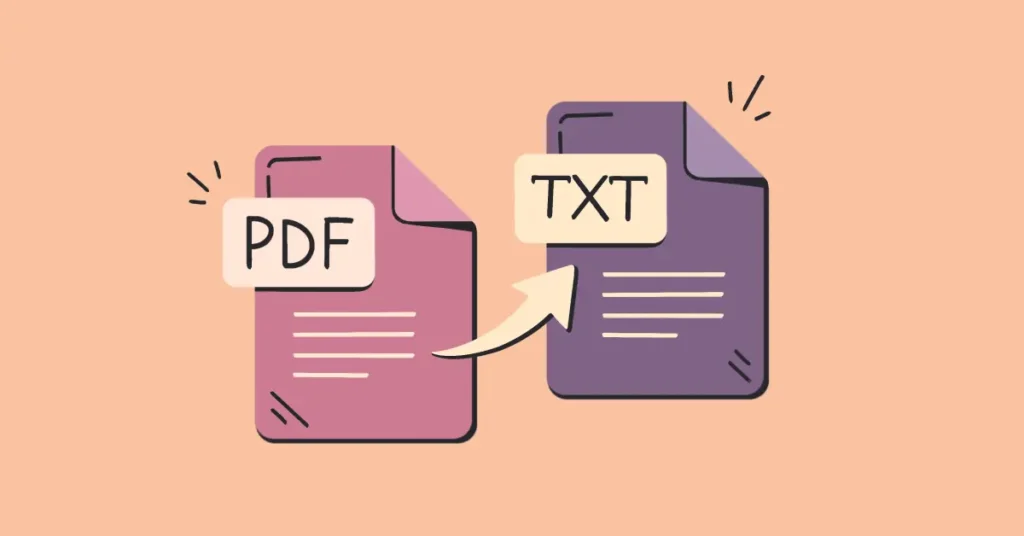
If you need to convert a PDF file into a text file for editing, archiving, or importing into another program, you don’t need expensive software. Our converter turns any PDF into a plain text file in seconds. This is especially useful when you want to convert your PDF to a text file free of cost, without downloading desktop software or dealing with subscription tools.
Businesses that deal with large volumes of paperwork invoices, HR forms, shipping records often need this conversion done repeatedly throughout all over the day. Doing it manually simply is not realistic at this point, which is why having a dependable, browser-based PDF to text converter on hand makes a genuine difference to daily workflow.
Best Free PDF to Text Converter Tools
Not all PDF to text tools are created equal. Many “freeware PDF to text converter” options online are either slow, limited to a few pages, or produce inaccurate results on anything but perfectly clean documents. Our tool is built to handle real-world files like messy scans, low-resolution images, and dense multi-column layouts while remaining completely free, with no page limits or hidden charges.
When comparing PDF to text converter options, look for three things: accuracy on imperfect scans, no artificial page or file-size limits, and no requirement to install desktop software just to convert a single document. A browser-based PDF to text converter tool that runs entirely online checks all three boxes, which is exactly the approach we have taken with this tool. you can also try our signature extractor tool for reduce your more manually workload.
How to Copy Text from PDF to Word
Need your extracted content in a Word-ready format? Once our tool extracts the text from your PDF, you can copy the clean output directly into Microsoft Word or Google Docs. This is a simple, reliable way to copy text from a PDF to Word without dealing with broken formatting or missing paragraphs that often happens when copying directly from a PDF reader.
How to Extract Text from a PDF Image (Scanned Documents)
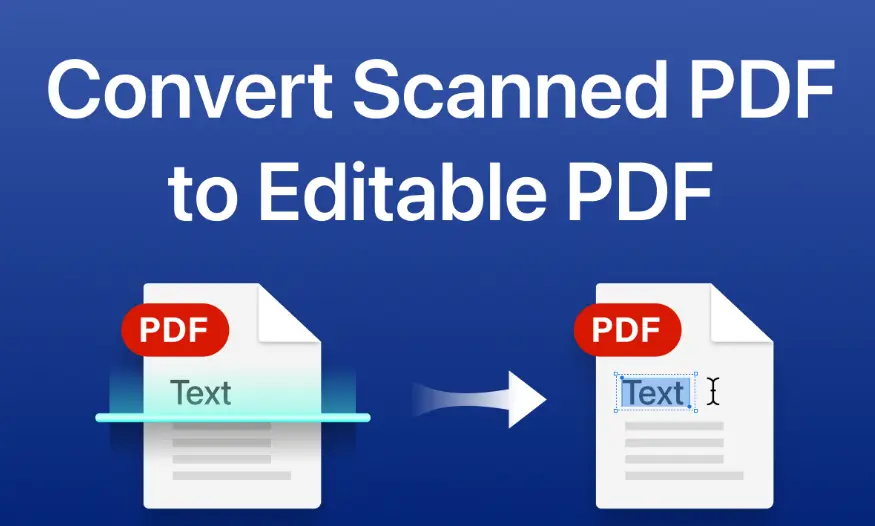
Many PDFs especially scanned contracts, old records, or photographed pages are essentially images saved as a PDF. Regular PDF readers cannot extract anything from these because there is no real text layer, only pixels. Our tool uses OCR (Optical Character Recognition) to extract text from a PDF image accurately, effectively turning your scanned document into a searchable PDF with real, selectable text instead of a flat picture.
This is one of the most requested features now a days. A stack of scanned pages becomes far more useful once it’s been run through a proper PDF to text converter, since the resulting text can be searched, indexed, or copied into a database.
How to Make a PDF Text Searchable
If you have ever tried to use Ctrl+F on a scanned PDF and gotten zero results, it is because the document has no underlying text, search functions have nothing to read. By running your file through our converter, you can make a PDF’s text searchable, turning a static scan into a document where you or anyone else can instantly find specific words, names, or figures.
How to Copy Text from a Protected PDF
Some PDFs are locked to prevent copying, often for security or copyright reasons. If you have legitimate access to the file but the copy function has been disabled, our tool can still read and extract the visible text using OCR, since it works by reading the page visually rather than relying on the file’s internal permissions. This makes it possible to copy text from a protected PDF for your own legitimate use, such as personal notes or internal documentation.
How Accurate Is Our PDF to Text Conversion?
Accuracy is the primary consideration in changing an image or scanned version of PDF to text. Bad software can give you fragmented sentences, lost words, and even jumbled letters in low-resolution scans. Our OCR technology is trained to read from all kinds of files printed documents, invoices, agreements, or multi-column pages – so that you get text very close to the original, even if the original is not entirely clean.
That said, results do vary depending on scan quality. A crisp, well-lit scan will always convert more accurately than a blurry photo of a document taken at an angle. For the best results with any PDF to text converter, try to use the clearest scan available before uploading.
Supported File Types and Page Limits
You can upload standard PDF files of almost 20 pages lengthy, whether it is a single-page scanned receipt or a multi-page report. There is no software to install and no restrictive page caps that force you to pay for a premium plan just to convert a longer document. Upload your file, and the tool processes every page automatically.
Tips for Getting the Best Results
Use a clear, well-lit: Scan Blurry or dark scans reduce OCR accuracy, no matter how good the converter is.
Avoid extreme angles: A straight, front-facing scan works far better than a photo taken at an angle.
Split very large files if needed: For extremely long documents, converting in smaller batches can sometimes produce cleaner results.
Review the output: Even the best PDF to text converter can occasionally misread a smudged character, so a quick proofread is always worth it for important documents.
Common Uses
Scanned Invoices & Receipts: Extract data quickly without retyping numbers manually.
Legal Documents & Contracts: Search and edit text from locked or scanned PDF files.
Academic Papers: Copy text from research PDFs for citations or notes.
Old Reports & Records: Digitize paper-based files stored as PDF scans.
How It Works
It is very easy to use PDF to Text Converter:
- Upload your PDF file
- Our AI extracts the text automatically
- Copy or download the result with in minute
Frequently Asked Questions
Is this PDF to text converter free?
Yes, completely free with no signup required.
Does it work on scanned PDFs?
Yes, our AI OCR engine reads scanned and image-based PDFs accurately.
Can I extract text from a password-protected PDF?
If you have access to view the file, our tool can read and extract the visible text.
Is my PDF file safe?
Yes, files are processed securely and are not stored on our servers.
Do I need to install any software?
No. This PDF to text converter works entirely in your browser — there’s nothing to download or install.