
How to Use a Signature Extractor From Image Free Tool the Right Way
You can extract signature from AI Text Extractor. Signatures still matter. Even in a world run by e-signatures, digital contracts, and cloud paperwork, there are countless moments where you need your actual handwritten signature pulled cleanly out of a photo or scanned page and turned into a transparent, usable image. Maybe you signed a document on paper, snapped a picture with your phone, and now you need just the signature no background, no paper texture, no shadows. That is exactly where a signature extractor from image free tool becomes useful, and honestly, once you understand how these tools work, you will wonder how you ever managed without one.
What is Signature Extractor From Image Free Tool?
A signature extractor from image free tool In simple terms, a signature extractor is a piece of software (typically web-based) that is able to identify, crop, isolate and extract your signature from a photo or scan of your signature and any other information on the same page. The result is usually a PNG image with the transparent background which means you can place your signature on any document, PDF, Word file or form without dragging along the paper texture, lines or any stray marks around it.
Cost is the sole reason why people are searching for the signature extractor from image free option. While any of the professional programs such as Photoshop can technically do this, it takes skill, time and sometimes payment to do so. There’s a free tool that does away with all of that. You upload an image, the tool analyzes it with background removal and edge detection and in seconds, you will have a clean signature ready to use. Try it Now:
Where You can use signature extractor from image free tool
People need to know how to extract a signature from an image and need a free solution. This type of tool is needed in a number of practical application:
- Digital paperwork You signed a document years ago and need to sign the same one on a digital document.
- Business documents Small business owners often require their signature to be stamped on invoices, contracts or approval letters.
- Email Signatures: Use a handwritten style signature on professional emails, as it will look more like a handwritten signature than typed text.
- Freelance work Freelance people signing off proposals or agreements might require a steady signature picture throughout a number of files.
Students and job seekers Inserted signature is used on cover letters, applications and academic forms in some instances.
In all these scenarios, the image free signature extractor saves time over editing images pixel by pixel.
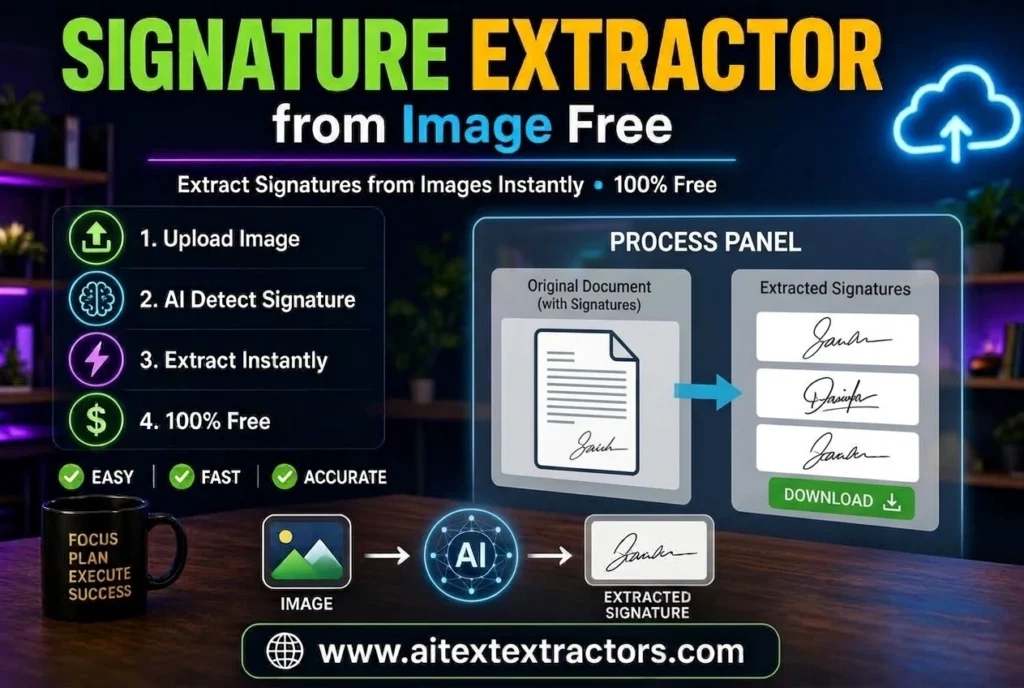
How a Signature Extractor From Image Free Tool works
The basic way in which most of these tools work is similar:
Step 1: Upload the Image Take a picture or scan of your signature on white paper and upload it.
Step 2: Background Detection The tool detects the contrast between the ink and background of the paper. Due to the difference in colour of ink and paper, the software can separate the two layers.
Step 3: Noise Removal All dust markings, shadows and paper grain are removed leaving only the signature strokes.
Step 4: Transparent Background Creation The paper background is removed and only the paper signature appears in a transparent canvas.
Step 5: Export The final image is downloaded, typically in the PNG format, to be pasted into any document.
That is why it’s like magic to use a good signature extractor from image free service the first time you use it. Previously it took 15 minutes to manually edit, now it only takes 15 seconds.
Before selecting a one, consider the following features:
All signature extractor from image free signature platform are not created equal. Some are simple and clean background with white others provide more sophisticated controls. A few things to check out:
- Exporting signatures in transparent PNG If you are going to use the signature on a colored background or document, this is essential.
- High resolution output A fuzzy signature will not look professional choose a tool that will maintain image quality.
- No watermark If you are looking for the best free tools, you will want to avoid those that add a watermark unless you pay.
- Quick processing You do not want to wait for a few minutes to perform a simple crop-and-remove task.
- Privacy and security A signature is personal data that’s sensitive, so ensure that the signature extractor from image free service is not keeping your uploads forever or storing them anywhere else.
- Mobile friendly A lot of people snap their signature directly from a cell phone, so the tool should operate well on cell phone browsers as well.
Step-by-Step Guide
If this is your first time trying, here is an easy and practical workflow:
- Sign on normal white paper. Use dark pen, black or blue ink is best as this will give a stronger contrast to white paper when extracting.
- Take a clear picture or scan Do not shoot folded paper, shadows or at angles. Indoors yellow light is less effective than natural daylight.
- Go to a photo signature extractor from image free site and upload the photo. The upload/drag and drop boxes are located on the homepage of most tools.
- Allow the tool to work on the picture. This might be an “erase background” brush tool, or an automatic removal of background, depending on the platform.
- Preview the result. Look carefully at the outline of your signature. In the event that there is a slight gray shadow, or background remains, some instruments provide sensitivity settings that you can change to clean it up even more.
- Download the PNG file. Store it in an easily-accessed location, such as a folder called “My Signature,” so you can use it again later without having to go through the entire creation process again.
- Plug it in as required. If it is a Word document, PDF form or email signature block, the transparent PNG will lay on top naturally, without a white box around it.
People make a lot of common mistakes
No matter which signature extractor from image free tool you use, there is a possibility of results being incorrect if the given image is not a good one. Examples of typical problems are:
- Bad lighting Shadows fool the background detection algorithm and result in grey areas around the signature.
- Low resolution photos Blurry photos result in blurry, jagged signature edges.
- Colored or lined paper Extraction works best in background paper that is plain white paper; lined or grid paper can cause problems with clean background removal.
- Smudged or wet ink Ink can smudge and be confused with a signature shape.
By preventing these pitfalls before you even start to open a signature extractor from image free tool, you will save yourself a few re-uploading and re-editing rounds.

Is It Safe to Use a Signature Extractor From Image Free Tools?
This is a fair concern, since a signature is a form of personal identity. Reputable platforms process the image temporarily and do not store it long-term, but it is still wise to be cautious. Avoid uploading your signature to random, unknown websites with no privacy policy. Stick to tools that clearly explain how your data is handled, and if you’re extracting a signature for something highly sensitive like legal contracts, double-check the platform’s reputation first.
Alternatives to Online Tools
While a browser-based tool of this kind is the fastest route for most people, there are alternative methods too:
- Manual editing in Photoshop or GIMP More control, but requires software knowledge.
- Mobile apps Several phone apps offer similar background removal specifically designed for signatures.
- Built-in PDF editor tools Some PDF software includes a “signature” feature that lets you draw or upload a signature directly, occasionally with background removal built in.
That said, most people prefer the simplicity of a dedicated signature extractor from image free website because it doesn’t require installing anything and works instantly from any device.
You can Use AI Text Extractor for signature extractor as well as you can extract text from image and PDF and also Analyze your Content with free tool.
A Few Practical Tips for Better Results
Beyond the basic steps mentioned earlier, a few small habits can noticeably improve the output quality:
- Use a flatbed scanner instead of a phone camera when possible. Scanners produce even lighting and sharper contrast for more accurate background removal.
- Sign larger than usual. A bigger signature gives the extraction algorithm more pixel detail, resulting in smoother edges once isolated.
- Keep the paper flat. Even slight curves or folds create shadows the tool might mistake for part of the ink.
- Test different tools if the first one disappoints you. Not every platform performs equally, and since most options are free, there’s no harm trying two or three.
- Zoom in before downloading. Checking the final image at a larger zoom level helps catch small background residue.
These small adjustments can turn an average result into a genuinely professional, print-ready signature image.
A clean digital signature has become almost as important as a physical one. Whether you are a student submitting forms, a freelancer sending invoices, or a business owner finalizing contracts, having a ready-to-use, transparent signature image saves time and looks far more professional than a signature sitting on a white paper background. Using a signature extractor from image free tool is by far the easiest way to get there, no design skills, no paid software, just a photo and a few clicks.
As long as you take a clear photo on plain paper and choose a trustworthy platform, you’ll have a polished, reusable signature ready in less than a minute, and you’ll likely never go back to manually cropping and editing signature images again.
Frequently Asked Questions
Can I extract more than one signature at once?
Most basic tools are designed to process one image at a time, but some advanced platforms allow batch uploads. If you frequently need to pull signatures from multiple scanned documents, look for one that specifically advertises batch or bulk processing, since not all of them support it.
Does the extracted signature work on both light and dark backgrounds?
Yes, if the output is a genuine transparent PNG. This is one of the biggest advantages of proper extraction instead of simply cropping a screenshot a cropped screenshot still carries a white box around it, while a transparent extraction blends naturally into any document color or template.
What file formats can I upload?
Most tools accept JPG, PNG, and sometimes PDF pages as input. The output is almost always a PNG because that format supports transparency, which JPG does not. If a website only offers JPG as an export option, it likely isn’t a genuine signature extractor from image free tool, since a JPG background will always show as solid white or another color.
Will the signature look exactly like my original handwriting?
Yes, extraction tools do not redraw or alter your handwriting; they only isolate the existing strokes from the background. As long as your original photo is sharp and well-lit, the extracted version will match your natural signature precisely, just without the paper around it.
Do I need any design experience to use these tools?
Not at all. That’s the entire point of this kind of tool it’s built for everyday users, not designers. The interface is usually a simple upload button, a preview screen, and a download link, with no manual tracing or layer work required.
Can I reuse the same extracted signature forever?
Absolutely. Once you’ve extracted and saved your signature as a transparent PNG, you can reuse that same file across hundreds of documents, emails, and forms without repeating the process, unless you want to update it with a fresh signing style later on.