
Screenshot OCR: How Turning Images into Editable Text
Every day, millions of people take a screenshot of something they want to remember a paragraph from an article, a line of code, a phone number on a poster, or a quote from a chat conversation. But a screenshot by itself, is just a picture. You cannot search it, copy a sentence out of it, or edit the words inside image. That is where screenshot OCR comes in. Screenshot OCR to text is the technology that reads the text trapped inside an image and converts it into real, editable, searchable text within minutes.
If you are never heard the term before, OCR stands for Optical Character Recognition. It is a decades-old technology originally built for scanning printed documents. But when you combine OCR with the modern habit of screenshoting everything on our screens, you get a much more practical and everyday tool: screenshot OCR. Instead of scanning a physical page, screenshot OCR scans the pixels of a screenshot and identifies the letters, numbers, and symbols hidden inside it, then outputs them as plain text you can copy paste, translate, or search.
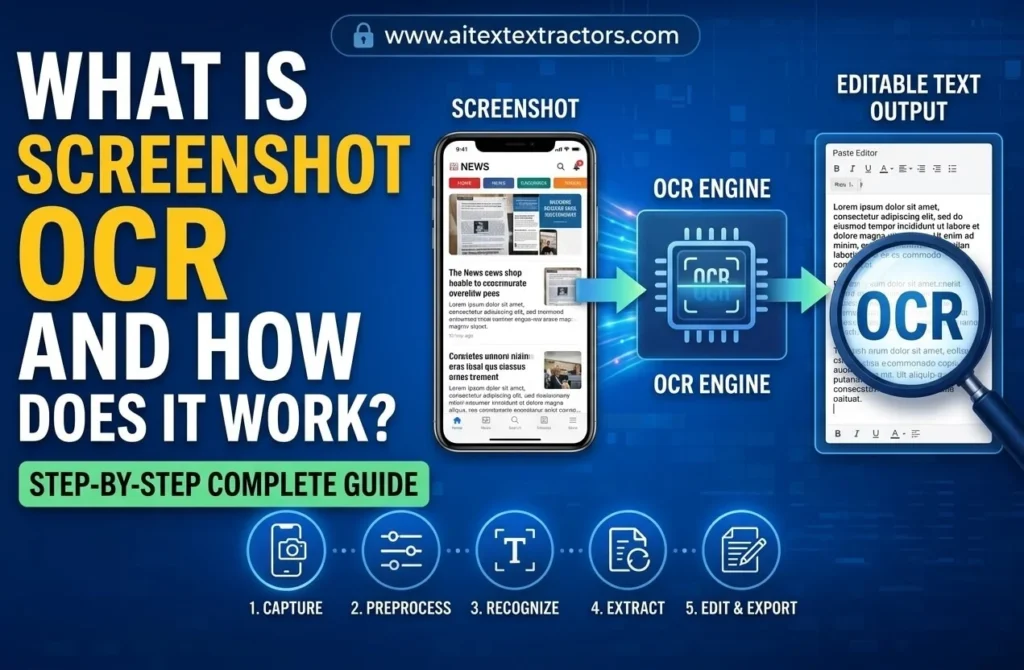
Understanding how Screenshot OCR works and What is the process of Screenshot OCR?
To understand how it has become so reliable, it makes sense to know how it works. It is important to understand the process of the screenshot OCR to understand the reason for its reliability. if you Want to try how extract text from Screenshot then click on below Button.
Typically this occurs in several stages:
- Image Capture Taking the screen shot: whether it be a screen shot of the entire screen, a screen shot of a select area, or a picture of the screen.
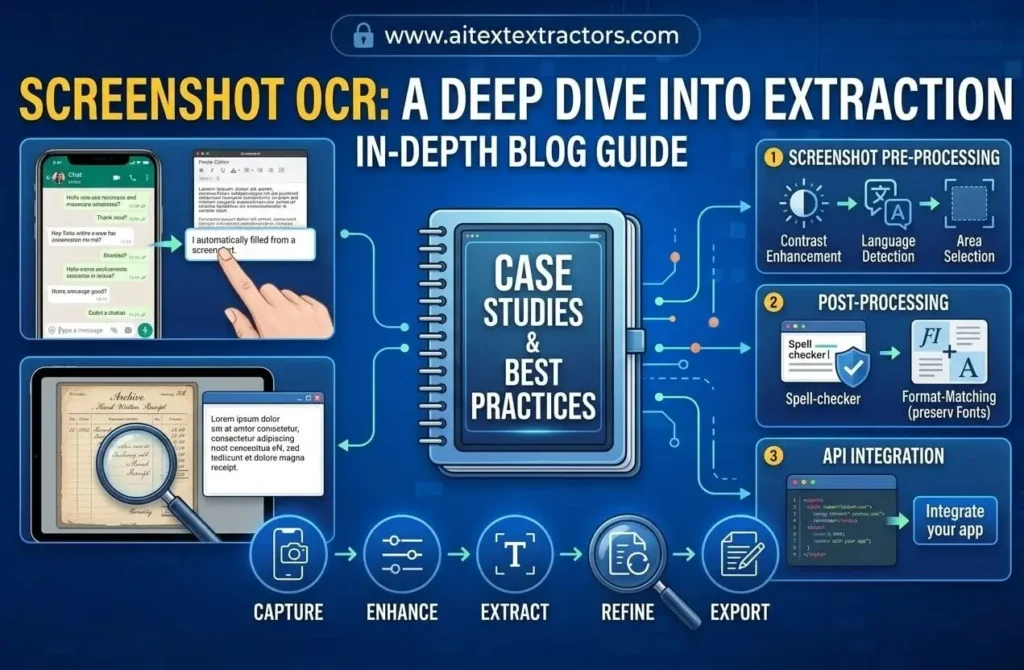
- The screenshot OCR engine performs the Preprocessing step before any text recognition is carried out, which is to clean up the image. This can involve changing contrast, reducing noise, straightening lines of text or converting it to grayscale to make letters more visible against the background.
- Text Detection: The software then identifies areas that contain text and discards those in which there is empty space, icons or photos. This is important because a screen shot may contain buttons, visuals, text and more.
- Character Recognition After recognizing text regions, the core OCR engine classifies the shapes of each character and compares them with the various fonts and handwriting patterns in the huge database using machine learning models trained on all fonts and handwriting.
Finally, the recognized characters are combined to create words, sentences and paragraphs, as much as possible maintaining the original formatting, and passed back as edit-able text (Output Generation).
The dramatic improvement in accuracy is due to the use of deep learning models by modern extract text from screenshot tools as opposed to the more traditional rule based approaches. The newer models can process various fonts, colours, backgrounds and even slightly blurry and angled screenshots with great accuracy.
How Screenshot OCR has gained so much popularity.
Just a few years ago, OCR was primarily used by businesses that had to replace paper records, or libraries that were storing old books. These days, with screens being our primary sources of information, screenshot OCR has become part of our daily routine. Students take screenshots of lecture slides. Business’s people take screenshots of emails and spreadsheets. Business people capture screenshots of emails and spreadsheets. Customers take pictures of receipts and product labels. Tourists upload foreign menus and street signage to their phones. Tourists take photos of menus and street signs in foreign languages. In each of these cases, screenshot OCR can provide users with a quick means to extract usable text from a static image without re-typing any text.
The change is also driven by the amount of time people use their mobile devices. Taking the time to type a paragraph on a small keyboard is tedious and aggravating. That is eliminated with Screenshot OCR you take a picture, pass it through an Optical Character Recognition system, and you are left with the text to copy. Time saving, less mistakes, and allows people to use the information without having to re-enter it.
Common Applications of Screenshot OCR
The uses of screenshot OCR are virtually limitless.
Note taking and studying: Students take notes or read textbooks, whiteboards or lecture slides online and put them into their notes without having to retype them all by hand.
In combination with translation software: screenshot OCR allows travelers to easily comprehend foreign menus, signage, or documents by capturing and translating the text from a screen.
Business workflows and data entry: With the ability to convert scanned forms, receipts, or invoices into structured and editable data, companies save a lot of time while reducing manual data entry.
For individuals with visual impairments: a screenshot OCR with text to speech functionality can provide verbal feedback about an image’s content, making digital content much more accessible.
Researchers and journalists: Professionals take screenshots of reports, tweets or archived pages, then use the features of Screenshot OCR to accurately quote or cite them without making transcription mistakes.
Coding and technical work: Developers often take screenshots of errors messages or code snippets from tutorials and then copy and paste the code rather than retching it character by character, they can do so using OCR.
Selecting the Correct Screenshot OCR Software program
A good OCR tool can display an image as text, but not all are created equal and the type of tool needed depends on the purpose this tool is being used for. To keep in mind, you should consider:
- Multi-language accuracy If you frequently work with multilingual content, ensure that the screenshot OCR tool supports multiple languages and scripts beyond English.
- Speed and convenience There are tools built into the operating system that enable you to simply long press on a capture and immediately copy the text. Others will ask you to upload a photo to a different app or site, increasing the number of steps you need to take.
- Preserving formatting A quality screen shot OCR software will not output raw text, it will strive to keep some formatting, tables and paragraph structure, so that the output is readable and structured.
- Privacy and security If the screenshot OCR tool captures sensitive data such as passwords, financial data or personal messages, it may be important to consider how it handles images, whether it processes them on the device or uploads them to an external server.
- Integration with other apps The best screenshot OCR software integrates with note taking programs, translation services, or clipboard managers, allowing you to seamlessly incorporate the content into your workflow.
Built-In vs. Third-Party Screenshot OCR
There are now many smartphones and computers available that have a native screenshot OCR to text tools feature. For instance, there are phones that offer the ability to copy text from a picture or a screen shot without any additional software. The advantages of this built in method are that it doesn’t involve any downloads and that it works immediately, but it may be restricted in terms of language support and accuracy from dedicated tools.
Third-party screenshot OCR applications, AI text Extractor is best for extracting text from screenshots. however, are usually designed with an emphasis on text extraction and come with more sophisticated capabilities: batch processing, handwriting recognition, PDF or Word file export and even AI-based text summarization. If you use screenshots as your primary source of OCR content whether for research, study or customer support then a dedicated third-party solution is definitely worth the extra effort.
Limitations of Screenshot OCR
While screenshot OCR has come a long way, it isn’t perfect. Recognition accuracy can drop significantly with low-resolution screenshots, unusual fonts, heavy background patterns, or handwritten text. Highly stylized text, such as text in logos or artistic designs, can also confuse screenshot OCR engines because the shapes don’t match standard character patterns.
Another limitation is context. Screenshot OCR reads what it sees, but it doesn’t always understand meaning. A number that looks like the letter O might be misread, or a currency symbol might be dropped depending on the tool. This is why it’s always a good habit to quickly proofread text pulled from a screenshot OCR tool, especially for anything important like financial figures or legal information.
The Future of Screenshot OCR
As artificial intelligence continues to improve, screenshot OCR to text tool is expected to become even smarter and more context-aware. Instead of just extracting raw text, future screenshot OCR tools are likely to understand structure automatically recognizing tables as tables, forms as forms, and even summarizing long passages instantly. Real-time screenshot OCR, where text is extracted the moment you take the screenshot without any manual action, is already becoming standard on many devices and will likely become universal.
We are also likely to see screenshot OCR merge more deeply with AI assistants, allowing users to not just extract text but immediately ask questions about it, translate it, or turn it into a task or reminder. This kind of integration turns screenshot OCR from a simple utility into a genuine productivity engine.
Finally Screenshot OCR to Text has quietly become one of the most useful pieces of everyday technology, even though most people rarely think about the name behind it. Whether you are a student copying notes, a traveler reading a foreign sign, a developer grabbing a snippet of code, or a business digitizing paperwork, screenshot OCR saves time and eliminates the tedious task of retyping text by hand. As the underlying AI models keep improving, screenshot OCR will only get faster, more accurate, and more deeply woven into the tools we use every single day. What started as a niche scanning technology has turned into an essential bridge between the visual world on our screens and the editable, searchable text we actually need to get things done.