
How to Convert an Image Signature to Digital Signature?
You are asked to send your digital signature. You look into your folder, pull up a PNG of your signature and ask yourself: “Is that what they wanted?” They could be talking about it or they could be asking for something else because the term is so flexible that people with totally different meanings can use it at once.
But here is the point. Usually, people ask for some clear representation of your signature that will allow them to add it to the document. But sometimes they need something more secure. And then an image of the signature will not do. This guide explains the meaning of an image signature to Digital Signature, describes the process of converting it to a signature file and tells how to recognize the moment when you need something more. If you would like to see how signature pictures are made from scratch, our complete guide to extracting a signature from an image covers the basics.
What Is an Image Signature to Digital Signature?
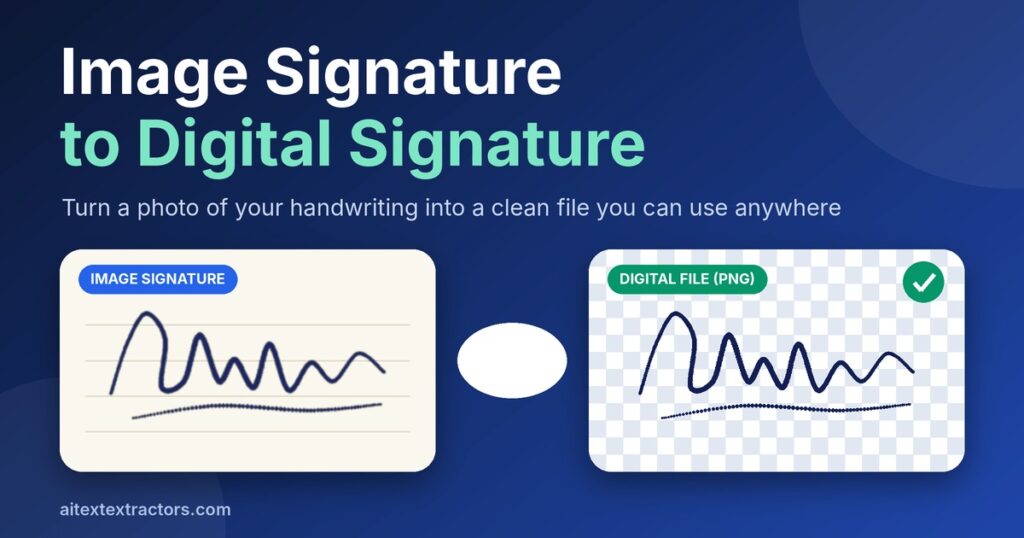
Image signature refers to an image of one’s hand signature, commonly stored as a PNG with transparency; it becomes one’s digital signature. An image signature is made by signing on paper, then capturing it through photography or scanning the paper with the signature and getting rid of the paper background. As an image, it resembles one’s signature since it is one’s own signature stored digitally.
It is not evidence since an image does not provide any information about who put it on the document, when it was done, and whether the document was modified afterwards. An image signature is just a graphical representation of one’s signature, nothing else. This is precisely what makes it so useful for routine documents, but useless as evidence.
E-Signature vs Digital Signature
Three ideas get tangled together here, so let’s pull them apart.
The first is the image of your handwriting, which is exactly what we have described above and which you can insert into the document.
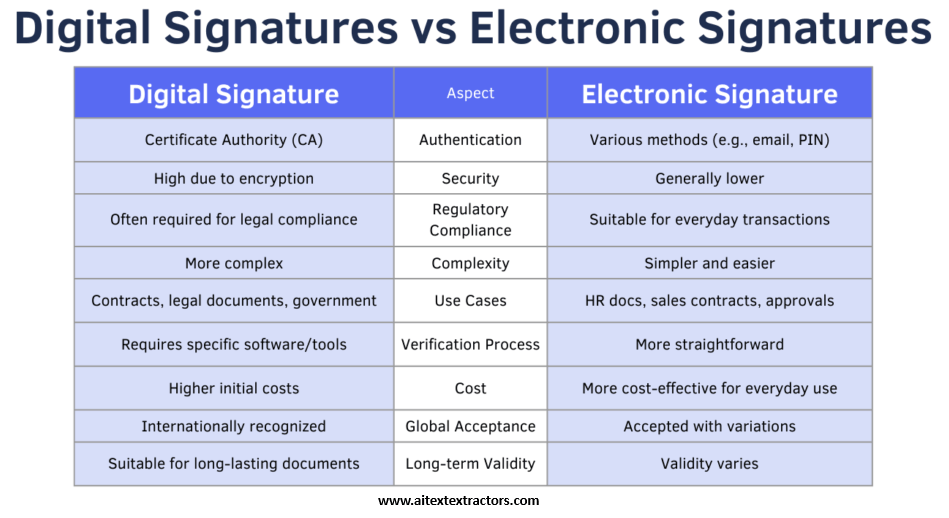
The second one is the electronic signature, or the e-signature. This is a much wider concept, which includes all the possible methods of demonstrating your agreement online, including typing your name, clicking a check-box, making your signature using the mouse or inserting an image of your handwriting. E-signature mostly proves that you had the intention of signing just like in the case of signeasy.
The third is the digital signature from the strictly technical point of view, which involves adding certificate-based security. It uses the digital certificate issued by the certificate authority that connects the identity with a pair of keys. As reported by SSL.com, it gives the guarantees of the authenticity, integrity and non-repudiation that plain electronic signatures do not give. To say it plainly, it helps the recipient authenticate the signer and identify whether the document was altered afterwards. SSL has a clear explainer on electronic versus digital signatures if you would like the technical side.
In everyday conversation about image signature to Digital Signature, people use “digital signature” for all three.
Three Examples to Make It Concrete about Image Signature to Digital Signature
Consider an invoice issued by a freelancer. The only thing that is required by any recipient is a good signature picture at the bottom, and it serves the purpose well.
Now consider a tenant signing a rental agreement sent to him through an online e-signature service. This service will assist the user in completing the procedure, and many such services keep information such as the time when the signature was done. In this case, the signature picture is just one part of a larger, more documented process.
Lastly, consider an organization tendering a contract on a government portal. This portal might require a digital signature, and a mere signature picture is not going to help here.
These are common examples from daily life, you cannot available everywhere every time for sign documents that’s why you need to convert your Image Signature to Digital Signature.
Why Image Signature to Digital Signature Conversion Matters?
Signing used to mean printing a page, finding a pen and do sign and then scanning it back in. Now a days most paperwork moves by email, chat or an upload portal, and nobody wants to wait for a printer. That’s the main reason image signature to digital signature conversion matters: it turns a one-off scribble on paper into a file you can use whenever a document needs you.
It saves lot of time. Once your signature is a clean image, signing takes seconds instead of minutes. You skip the printing, the scanning and the trip to the shop, which adds up quickly if you sign invoices, forms or agreements every week.
It keeps your signature consistent. Every time you sign by hand it comes out a little different, and a rushed photo makes it more badly. A single, well-prepared file means your signature looks the same on every document, which looks more professional and is easier for others to recognize.
It fits the way people sign today. Many online platforms and PDF tools let you upload a signature picture instead of drawing one with a mouse. A proper image signature to digital signature workflow gives you a file those tools can use, and it usually looks far better than a wobbly mouse scribble.
It prevents small mistakes. A clean transparent PNG doesn’t bring a white box with it, doesn’t cover printed text, and doesn’t shift around when you resize it from the corners. Fewer visual slips mean fewer awkward corrections later.
One honest caveat. In everyday use, people call this whole process image signature to digital signature conversion, but strictly speaking you’re creating a clean signature file that you then use as an electronic signature. A certificate-based digital signature needs a digital certificate on top, and a picture can’t replace that. We explain the difference in the sections below.
So, is it worth doing? For almost anyone who signs documents more than once in a while, yes. The image signature to digital signature process takes about five minutes the first time, and after that you reuse the same file for as long as you like. Follow the image signature to digital signature steps below, or upload a photo to our free signature extractor to get started
Start with a Good Source Before You Convert Image Signature to Digital Signature
The quality of your image signature decides everything that follows. A blurry or shadowy photo will not magically improve later, no matter which tool you use. So sign on plain white paper with a dark pen, write slightly bigger than usual, and photograph it in even light with the phone held directly above the page.
Our guide on how to scan your signature with your phone shows the details. Take two or three attempts and keep the sharpest one. It costs you a few seconds and saves a lot of frustration.
How to Convert an Image Signature to Digital Signature in 6 Steps?
Strictly speaking, these steps give you a clean signature file that you then use as an electronic signature. We’ll get to true certificate-based signatures a little further down.
Sign on plain white paper with a dark pen: Use your normal signature, not a tidier version, so it matches your ID and older documents.
Scan or photograph it: Use the scanner mode on your phone (Notes on iPhone, Google Drive on Android), or take a photo in daylight with no shadows.
Remove the background: Upload your image signature to a free signature extractor and let it separate the ink from the paper.
Download a PNG and test it: Place it on a colored background and zoom in. If you see a pale outline, retake the photo. Our guide on getting a signature transparent background explains what to look for.
Place it in your document: In Word or Google Docs, insert it as a picture, set the wrapping to In Front of Text, and drag your image signature onto the line. We cover this in detail in our guide to inserting a signature in Word and Google Docs. For PDFs, see how to add a signature to a PDF without printing.
Save the finished document as a PDF: This keeps the signature from shifting around when someone else opens the file. If an online form asks for a JPG instead, follow our application form signature guide.
Using Your Signature Picture in an E-Signature App?
Plenty of online services let people sign documents without printing anything. When one of them sends you a document, you are usually offered a few ways to sign: type your name, draw it, or upload a picture. Many platforms let you upload an image signature instead of drawing one with a mouse, and the result almost always looks better, because your real handwriting beats a wobbly mouse scribble.
Options differ from one service to another, so check what yours offers. Many also log details such as the time of signing and the email address used, and that record is what gives the process some backing. The picture is still just a picture, but the platform around it adds evidence that a signing took place.
When You Need a True Digital Signature?
Some documents ask for more than a picture or a click. Tenders, regulated filings and certain government portals may specifically require a certificate-based digital signature, and they’ll usually say so in their instructions. In that case, a basic image signature to digital signature conversion won’t be enough on its own.
You need a digital certificate from a certificate authority, because a picture contains no certificate and no cryptographic protection. Even a perfect image signature to digital signature process only gives you a clean file, not a certificate. Rules vary by region. In the EU, for example, the eIDAS framework describes several levels of electronic signature. At the top level, a qualified signature needs a certificate from a qualified trust service provider and a secure signing device, such as a USB token.
The good news is that the two can work together. In some PDF software, the visible appearance of a certificate-based signature can include a picture of your handwriting, so the signed page still looks familiar while the security works behind the scenes. That’s where your image signature to digital signature file earns its place: it gives the certificate-based signature a familiar look. What is available depends on the software you use.
How to Tell Which One You Need?
Always Ask. Before you start any image signature to digital signature conversion, send a short message to the person or organization: “Do you need a signature image, an e-signature through your platform, or a certificate-based digital signature?” That single line saves a lot of back and forth.
If you can’t ask, here are some rules of thumb. For everyday letters, invoices, internal forms and many online agreements, a simple image signature to digital signature process is usually enough: you end up with a clean PNG that you use as an electronic signature. An e-signature platform makes sense when you want a record of who signed and when. A certificate-based digital signature is the right choice when the document says so, or when a law or regulator requires it, and in that case an image signature to digital signature conversion on its own won’t be enough. Whatever you pick, the recipient’s requirements come first.

Common Mistakes When You Convert an Image Signature
A few slips cause most of the trouble:
Saving as JPG: The white box comes back. Use PNG for documents.
Starting with a blurry photo: Noise and shadows turn into rough edges.
Stretching the file: Dragging the side handles distorts your handwriting. Resize from the corners.
Calling it a certificate-based signature: A picture isn’t one, and saying so can cause problems if the other side expects the real thing.
Assuming it’s automatically valid: Validity depends on the document, the country and what the recipient accepts.
Sending the raw file everywhere: Send a finished PDF instead whenever you can.
How you can Keep Your Signature Safe?
You can keep your signature by treating your image signature like any other personal data. An image is easy to share and easy to misuse, so a few habits are worth building. Keep one master file in a private folder or a password-protected drive. Delete test versions from shared computers and downloads folder. Send signed PDFs rather than the raw picture. And before you use an online tool, check how long it keeps your uploads.
On the legal side, whether a picture of your signature is accepted depends on the document and the country. Some agreements need a handwritten signature, a notary or a certified digital signature. If it matters, ask the organization receiving the document what it requires. This is general information, not legal advice.
Frequently Asked Questions
Can I convert an image signature to a digital signature?
You can turn it into a clean PNG and use it as an electronic signature in documents and on many e-signature platforms. A certificate-based digital signature is different: it requires a digital certificate, and your picture can only appear as part of its appearance.
Is an image signature legally valid?
It depends on the document, the country and what the recipient accepts. Many everyday agreements accept it, while some documents need something more formal. When it matters, ask the organization directly.
What file format is best for an image signature?
A PNG with a transparent background works best for documents and emails. If an online form asks for a JPG, use a white background and follow the size limits on the form.
Can I upload my signature picture to an e-signature app?
Often, yes. Many services let you draw, type or upload a signature. The exact options depend on the platform.
Is a typed name a digital signature?
Not in the strict technical sense. A typed name can count as an electronic signature in some situations, but it doesn’t have the certificate-based security of a true digital signature.
How do I stop someone from copying my image signature?
You can’t prevent it completely, but you can reduce the risk. Share signed PDFs instead of the raw file, avoid posting your signature publicly, and keep your master copy private.
Can AI make my signature picture?
AI can suggest styles, but it cannot reproduce how you personally sign. We explain the details in our guide to the ChatGPT signature.
A Quick Self-Test: Which Level Do You Need?
Answer three questions to see whether an image signature is enough:
Does the document ask for a certificate, a specific ID or the words “digital signature certificate”? If yes, you need a true digital signature.
Do you need a record of who signed and when? If yes, use an e-signature platform, and upload your PNG if it allows it.
Is it an everyday letter, invoice or form where a clean signature is all that’s asked? Then your PNG is enough.
Ready to make yours? Upload a photo to our free signature extractor and get a clean PNG in seconds.
Read next:
The Complete Guide to Signature Extraction from Images