
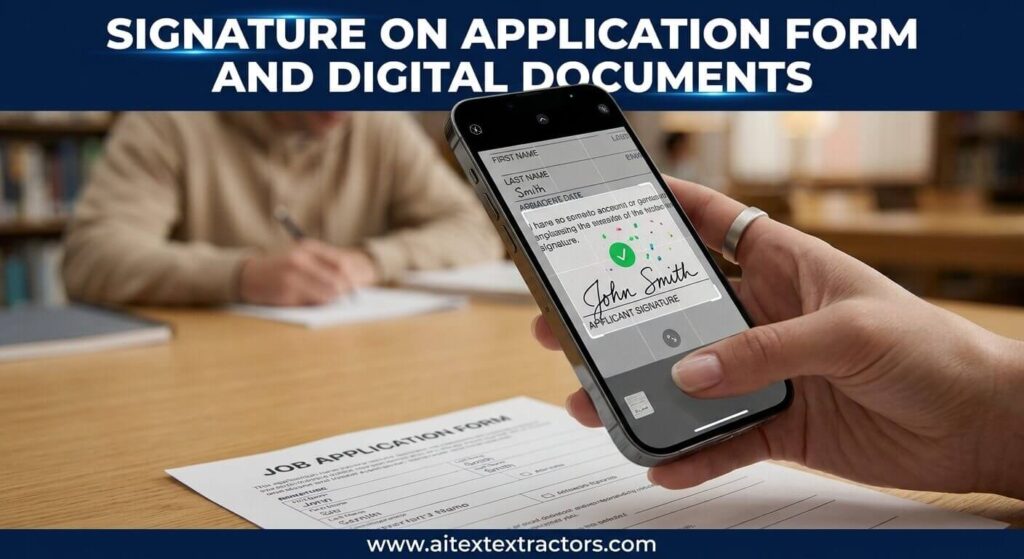
Application Form Signature: Size, Format and Upload Guide
You have spent forty-five minutes filling in an online form. Name, address, qualifications, everything is done. Then you reach the last field: “Upload signature (JPG, maximum 50 KB).” You pick your file, press upload, and the portal replies with “Invalid file.”
A rejected signature upload is one of the most common reasons people get stuck at the end of a job, admission or scholarship form. The good news is that the rules are simple once you know them. In this guide, we will answer the questions applicants ask most, and walk you through preparing an application form signature that the portal accepts the first time. If you would like to understand how signature images are made in the first place, our complete guide to extracting a signature from an image is a good starting point.
Why Do Online Forms Ask for a Signature Image?
An organization will always need a handwriting sample from you. This can either be printed on a card or on an admissions form, to be checked against your signature at some other point. That is another reason why a typed name just will not cut it.
The specifications apply both to the software and the person. The portal automatically checks the file format, size, and dimensions, and rejects any file that falls outside these limits before the human gets involved. It sure helps to know these limits before you try sending the file again.
What Does a Good Application Form Signature Look Like?
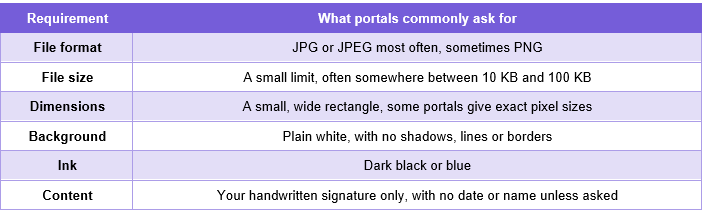
Rules differ from portal to portal, but most application form signature requirements come down to the same few points:
KB, MB and Pixels in Plain Language
There are two distinct measures that determine the acceptability of your file, and people generally get confused between the two.
File Size is the amount of space occupied by the file, and it is measured in KB or MB. Since 1 MB is equal to 1,000 KB, a mobile phone picture of 3 MB is definitely going to be higher than the 50 KB limit.
Dimensions are the width and height of the image in pixels. The fewer the pixels, the lesser is the file size, and hence, reduction in the pixel size is the easiest method to bring the file below the threshold. Remember to always resize an image downwards and not upwards.
PNG or JPG: Which Format Should You Use?
For documents, a transparent PNG is ideal, as we explain in our guide to getting a signature transparent background. For an application form signature, though, the portal usually asks for JPG, and a JPG can’t be transparent.
So, the goal is different here. You need your signature on a clean white background, saved as a JPG.
Watch out when you convert a transparent PNG into a JPG. Some tools fill the see-through area with black instead of white, so always open your finished application form signature and check it before uploading. If the form says PNG is allowed, the same size and dimension rules still apply.
Before You Sign: Tips for a Clean, Readable Signature
The main source of problems in the upload is the quality of the signature itself rather than the computer program used for scanning it. Blurry, smudged, or oddly-shaped signature will not be transformed regardless of your efforts to resize it correctly. A clear original will help you with each following stage, from resizing to the application form signature preparation.
Consider the following tricks which can improve the quality of your digital signature:
- Do some exercises: Practice signing two or three times on a piece of paper first. The first time usually results in a less flexible signature compared to the ones you use normally.
- Sign in your own manner: Do not try to sign differently – a signature that does not resemble yours might look odd on the scan and not match with the one in your documents.
- Write a bit bigger than you normally do: Larger signature will preserve its details after being downsized into a small file.
- Hold the pen evenly: Applying too much pressure when writing can result in some marks that would show up in the scan.
- Avoid signing before the ink dries: Wet signature will be smudged by any contact
- Sign on a hard, flat surface: A table works better than a notebook cover or a soft pad, which can make the lines wobble.
- Leave white space around it: Keep the signature away from the edges of the paper so no stroke gets cut off when you crop.
- Sign a few times and pick the best: Choose the one with the clearest, most continuous lines, and keep it as your master version.
Finally, keep your hand and phone out of the shot. A fingertip on the corner of the page or the shadow of your arm can ruin an otherwise good photo. It takes only a minute, and it saves you from having to redo the whole process later.
How to Prepare Your Application Form Signature in 7 Steps?
Follow these steps in order, and your application form signature will be ready in about ten minutes.
- Read the instructions for uploading the file: Note the acceptable format, maximum size and dimensions.
- Sign on white plain paper: Sign with a dark color pen, and try writing slightly bigger than usual to retain thin strokes while resizing.
- Photograph or scan it: Use bright, even light and hold the phone directly above the page. For a detailed walkthrough, see our guide on how to scan your signature with your phone.
- Clean it up if needed: If the photo has shadows or a grey tint, run it through our free signature extractor. If your scan is already clean and white, you can skip this step.
- Crop it precisely: Trim out the empty space around the signature, but not too close to the edges of the signature itself.
- Resize and save as JPG: Set the dimensions the form asks for, save as JPEG on a white background, and check the file size.
- Upload and preview: Zoom in on the portal’s preview to confirm the signature is clear and nothing is cut off.
How to Reduce Signature Size in KB?
One of the most frequent grounds for rejection of an application form signature is size limits. Here is how you can reduce the file size without affecting its quality.
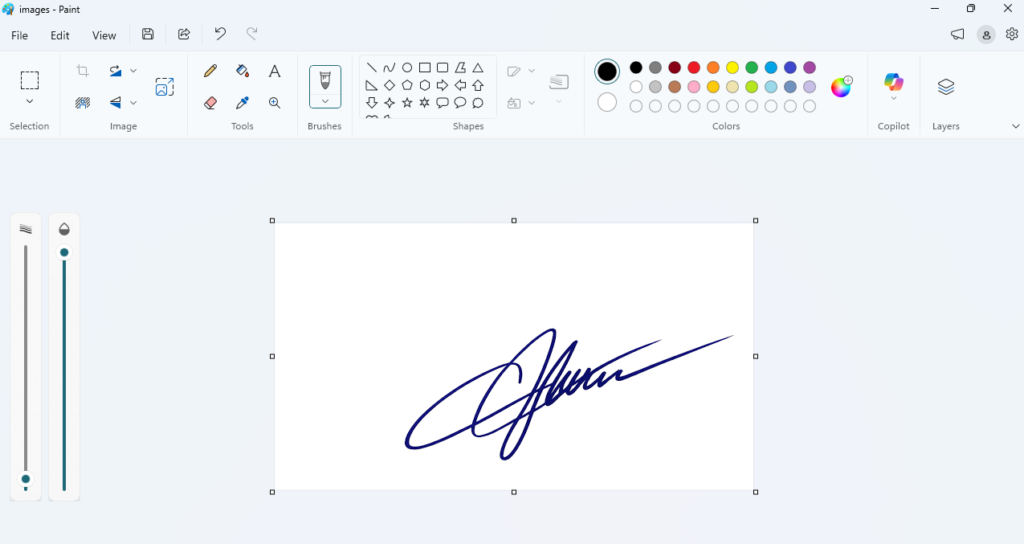
Using Windows PC (Paint)
- Open your image in Paint.
- Click on Resize, select Pixels, and leave Maintain aspect ratio checked. If using Windows 11, use Image > Resize and skew.
- Reduce the width of your image, and the height will change automatically.
- Use File > Save as > JPEG picture.
Microsoft also shares its own guide to resizing a picture in Paint. Menu names vary a little between Windows versions.
In order to verify the size: Right click on the saved file and go to Properties for windows. In mobile phones, just open the image in gallery or File app and look for ‘Info’ or ‘Details’.
In mobile phone: There are plenty of gallery applications in mobile phones that enable users to crop and compress the image size, as well as some free resizer applications that enable you to specify the image size in KB. Please do check reviews before installing any of these.
In case, your application form signature is still too large in size, then reduce the pixel size but not compressing the size much because heavy compression makes thin lines blotchy and illegible.
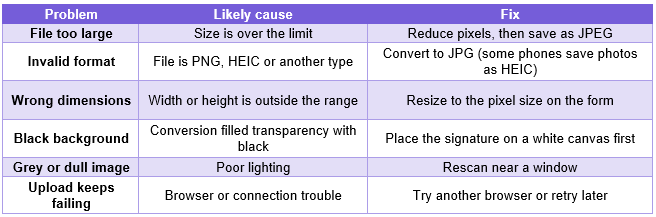
Why Is the Portal Rejecting My Signature?
Most errors have simple causes. Use this table to fix a rejected application form signature.
Can I Use a Typed or Digital Signature?
The majority of these forms require your actual handwriting to be used in the signature field, thus a computer-typed name in any stylish font will not be considered a valid signature for the application form unless it’s clearly stated otherwise in the instructions.
There might be some online portals that allow you to draw your signature using your finger or a mouse, but chances are that you will fail to make it look natural.
Common Mistakes to Avoid
These small slips cause most failed uploads of an application form signature:
- Uploading the unedited phone photo of the form. It is always several MB in size and captures the table along with the paper.
- Not removing any shadows and giving a gray look to the document. It can be accepted by the portal, but the reviewer might have difficulty understanding it.
- Using the wrong file format. Make sure if the form needs JPG, PNG, or some other format.
- Cropping and stretching the document. Keep the aspect ratio intact while editing.
- Including unnecessary elements. Don’t add any dates, names or borders unless asked for in the form.
- Submitting at the very last moment. Portals become slower close to the deadline.
Is It Safe to Upload Your Signature Online?
The signature of your application form is your personal information. Here are some ways to protect it:
- Only upload it to the official website. Check the website link before proceeding.
- Never send your application form signature to someone you don’t know, even if they promise to fill in your form for you.
- Keep a master copy in a private folder, and delete extra copies from shared computers and your downloads.
- Check the privacy policy of any tool before uploading your file to it.
Frequently Asked Questions
What size should an application form signature be?
It depends on the portal. Most ask for a small JPG with a limit somewhere in the tens of KB, but the number printed on your form is the only one that matters.
Can I take my application form signature photo with a phone?
Yes. Use a bright, even light, hold the phone parallel to the paper, and crop the result. Our phone scanning guide shows the details.
Should the background be white or transparent?
White, if the form asks for JPG. A transparent background only makes sense in PNG files, and only when the portal accepts PNG.
How do I convert a PNG signature to JPG?
Open it in Paint or a phone photo editor, make sure the background is white, and save it as JPEG. Then open the result to check it isn’t black.
Can I reuse the same signature file for different forms?
Yes, keep one clean master file. But make a fresh copy for each form, because the size and dimension limits change from one portal to another.
Before You Click Submit: Your Checklist
Run through this list and confirm that your application form signature is ready:
- The format matches what the form asks for
- The file size is under the limit (checked in Properties)
- The dimensions match the form
- The background is plain white, with no shadows or borders
- The ink is dark and clear when you zoom in
- It looks like the signature on your ID
- The portal’s preview shows it correctly
Need a cleaner starting image? Upload your photo to our free signature extractor, then resize and save it as a JPG using the steps above.
Read next:
How to Scan Your Signature on Phone