
How to Scan Signature on Phone (iPhone and Android Guide)
You need a digital copy of your signature, but the nearest scanner is in an office you can’t get to today. Meanwhile, the phone in your pocket has a better camera than most scanners had ten years ago.
The catch is that a quick snap usually looks poor. There are shadows across the page, the paper turns grey, and your signature looks stretched or faint. The good news is that every one of these problems has a simple fix.
In this guide, you will learn how to scan signature on phone the right way, whether you use an iPhone or an Android, and how to turn the result into a clean file you can use in any document. If you would like the full background first, our complete guide to extracting a signature from an image explains how the whole process works.
What You Need Before You Scan Signature on Phone?
You do not require any special equipment. Here are the four items that you need to have in order to scan signature on phone in one go rather than five times:
- Dark pen. Dark blue or black ink works best; avoid using pencils and light-colored gel pens.
- White paper. Colored paper will make the subsequent step more difficult.
- Lighting. You can use sunlight from a window during daytime.
- Lens cleaning. It is surprising how often dirty lenses lead to blurry scans, so clean your lens first with a soft cloth.
Difficulties During scanning signature on phone
Now we will talk about the difficulties most people experience when scanning their signature on phone and what can be done to overcome them.
Problem 1: Shadows across the Page
The results: One side of the scan is dark, usually in the form of a hand or a phone.
Why: The body or the phone blocks the light that is falling on the paper.
The fix:
- Stand next to, not on top of the paper.
- Place the paper next to a window so the light comes from the side.
- When using a lamp at night, make sure it is located at a height above and slightly behind the phone.
- Do not use the flash because it can produce a bright spot of glare in the page.
Whenever scan signature on phone, always check for shadows before capturing. If you can still see it, then shoot another picture from a different perspective.
Problem 2: A Tilted or Stretched Signature
The effect: Your signature is crooked, squashed at an end or elongated.
Why: The phone was not parallel to the paper. When you scan signature on at an angle, your handwriting will be distorted due to the perspective.
The fix:
- Place the paper on a flat surface.
- Place the phone vertically, above it, and the screen facing up toward the ceiling.
- Make sure that the sides of the page are aligned with the sides of the screen.
If available, switch on the grid lines on your camera to make sure the page appears to be square.
Additionally, built-in scan signature on phone which is covered below, can automatically straighten out a page when scanning, one of the top reasons to use the built-in scanner versus the standard camera.
Problem 3: A Dull, Grey Page
The results: The paper appears gray or yellowish in color and the ink is weak.
Why: Phone cameras even out brightness throughout the frame. White paper will tend to darken in low light.
The fix:
- Add additional lighting, preferably natural light.
- Use the scanner mode, rather than the standard camera. These modes enhance the contrast and lighten the page.
- In your photo editing software, adjust brightness and contrast slightly, if necessary. Minimize changes since extensive editing can cause thin strokes to fade.
In short, it is much easier to scan signature on phone in good daylight than to repair a dull scan afterwards.
Problem 4: Faint or Broken Lines
The result: Your signature appears light or with gaps in the thin areas.
Why: Poor ink quality, a dry pen or slight blurring in the photo.
The fix:
- Use a darker and stronger pen.
- Sign it larger than usual, so there are no fine details lost when you make it smaller.
- Place phone on stack of books or set arms to the table to keep your phone steady.
- Tap the signature on your screen to focus before you take the shot.
A steady setup is what lets you scan signature on phone with sharp, unbroken lines. Take 2 to 3 pictures and save the best. It takes just a few seconds and it is well worth it.
Problem 5: The Background Will not Go Away
What is happening: This is a white or grey rectangle around the signature of even a good scan.
Why: A photo or scan is always a rectangular picture, and the paper is part of the picture.
Solution:
- Remove the background after scanning.
- Once you scan signature on phone, the paper is still part of the picture, so upload the file to a free signature extractor.
- It separates the ink from the paper and gives you a PNG. If you would like to know why PNG matters and how to check the result, read our guide to getting a signature transparent background.
Which Pen and Paper Work Best?
The tools you sign with decide how clean your final file will be.

How to Scan Signature on Phone with an iPhone?
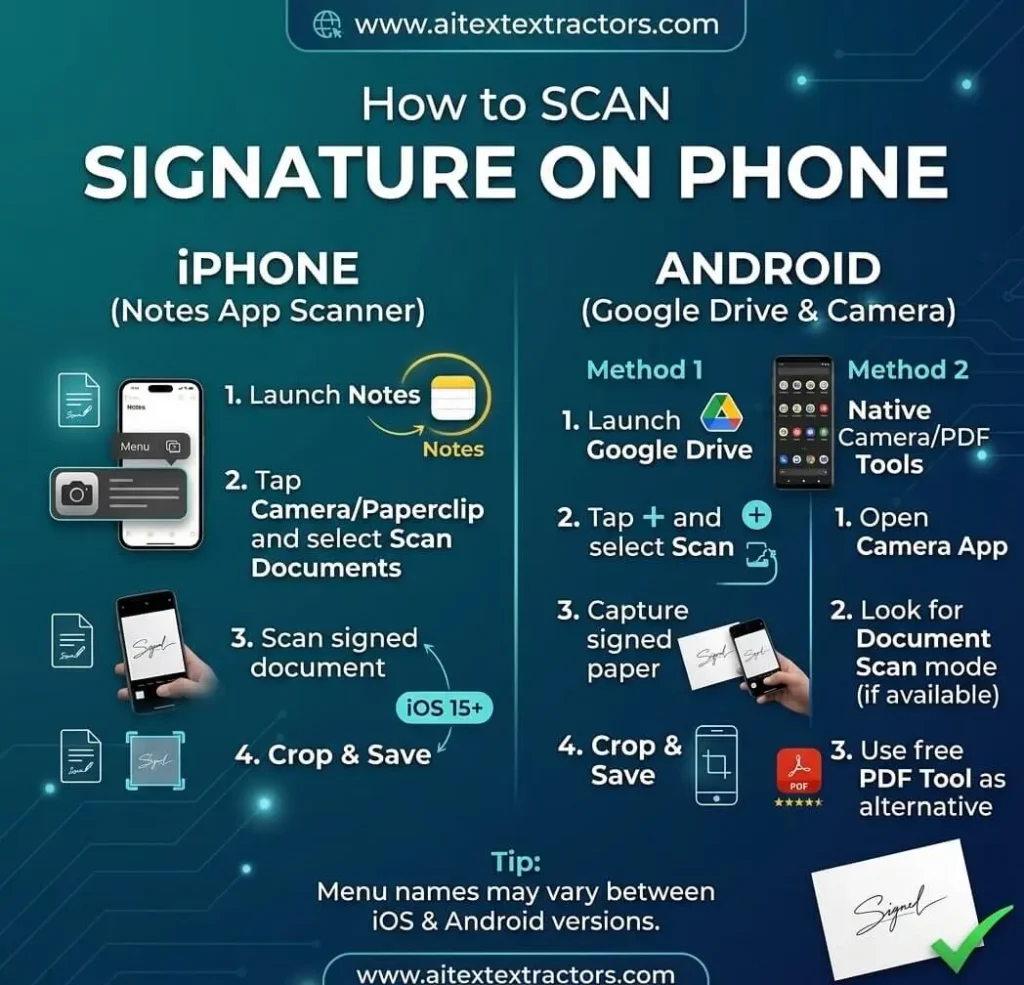
The Notes app has a built-in scanner that works on iPhone and iPad. Apple describes the same steps on its official support page.
- Launch Notes and create a new note, or an existing one.
- Touch the attach (paperclip) icon or the camera icon based on your iOS version, then select Scan Documents.
- Scan your document by holding the device above your signed document; when using auto mode, scanning happens automatically.
- If you would like to do the scanning manually, then touch the shutter icon or click the volume icon.
- Zoom in on the corners to adjust the size of the paper and touch Keep Scan and Save.
- Open the scanned document and use the Share icon to save it to Photos or Files.
Tip: Menu names change slightly between iOS versions, so look for the closest match on your phone.
How to Scan Signature on Android?
The Android devices differ in brands; however, there are two approaches which will help you scan signature on phone irrespective of its brand.
By using Google Drive:
- Launch Google Drive application.
- Click on the + sign, then select Scan.
- Set your phone above the paper, click on the shutter button.
- Crop the image and then save your scan.
Using camera or gallery: There is a possibility that in your camera or gallery app there may be such option as Scan document or something alike, depending on the phone brand you have. Try to use this function if available.
In case your phone lacks both options, a free PDF tools will be enough to get the job done. First, please make sure to check reviews and permissions required for using this tool.
Camera or Scanner Mode: Which Is Better to Scan Signature on Phone?
For most people, scanner mode is the easier choice. If you do use the regular camera, follow the lighting and angle tips above.

What to Do After You Scan Signature on Phone?
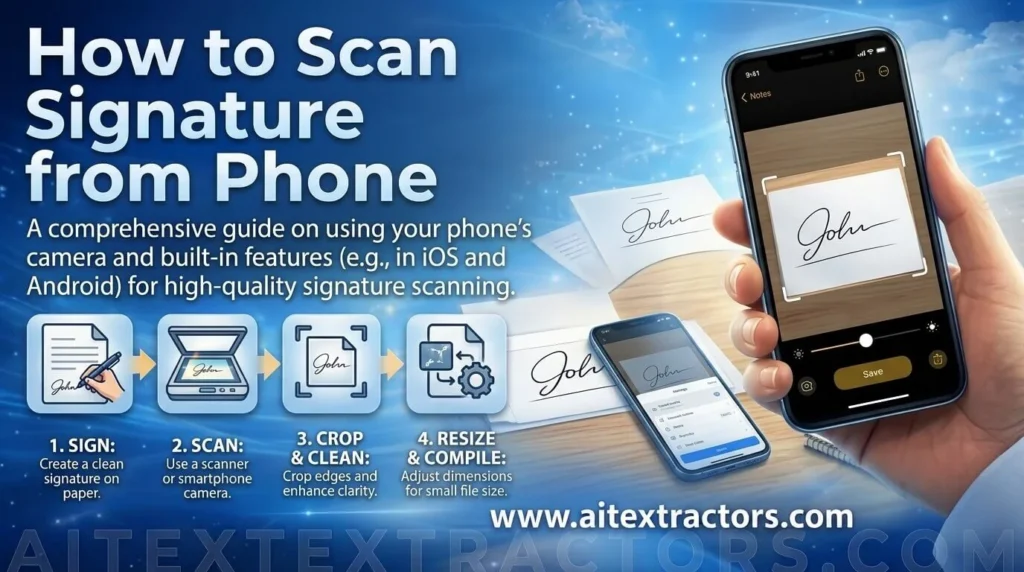
A scan is only the first step. To make it useful, follow this short path:
Crop: Trim away the empty space, but leave a small margin around the ink so the outer strokes aren’t clipped.
Remove the background: Use an extractor and download the result as a PNG.
Check it: Place it on a colored background and zoom in. If you see a pale outline, retake the photo.
Save it properly: Name it something clear, like signature-transparent.png, and keep it in a private folder.
After that, you are ready to use it. To sign a file without printing, follow our guide on how to add signature to PDF. If you prefer working in a text document, see how to insert signature in Word and Google Docs.
What to Look for in a Signature Scanner App or Tool?
You do not need to download any software; however, if you prefer having an app, there are several criteria that will be especially important:
- Automatic edge detection that will crop and level the document;
- Black/white mode to ensure that your ink shows;
- Export capabilities with high resolution, like PNG or PDF;
- Sound privacy policy since you will be uploading private information.
The application should provide an easy way to scan signature on phone and not complicate your life by unnecessary things. Of course, the free apps or tools with ads are suitable for your purposes, but keep an eye on permissions they require.
Keep Your Signature Safe
Every time you scan signature on phone, it gets saved in your gallery and could even be synced to cloud backup. The scanned signature is your personal data, and it is advised that the master copy be stored in a password protected file or in a private cloud. Any testing images should be deleted both from gallery and downloads.
From a legal point of view, acceptance of a scanned signature is dependent on the document type and country. While there are some agreements that accept an electronic signature, there are others that require a wet ink signature or a notary signature or a certified digital signature. If it is necessary, find out from the party receiving the document what their requirements are.
Frequently Asked Questions
Can I scan signature on phone without any app?
Yes. On an iPhone, the Notes app has a built-in scanner. Many Android phones have a scan feature in Google Drive or the camera. You can also take a normal photo in good light and clean it up afterwards.
What is the best resolution for a signature scan?
Aim for 300 DPI or higher if your app lets you choose. If it does not, simply take a sharp, well-lit photo and keep the original file size.
Why does my scanned signature look blurry?
The camera probably wasn’t in focus, or your hands moved. Rest your phone on a stable surface before you scan signature on phone, tap to focus, and take more than one shot.
Do I need to use white paper?
It is strongly recommended. Plain white paper gives the strongest contrast, and it makes background removal much cleaner.
How do I turn my scan into a digital signature?
Upload the scan to an extractor, remove the background, and export a transparent PNG. Then insert that file into your documents. A PNG signature is an image of your handwriting, which is different from a cryptographic digital signature that some documents require.
Is it safe to scan signature on phone?
Generally, yes, as long as you store the file carefully and use trustworthy apps and tools. Delete extra copies, and check any service’s privacy policy before uploading.
Your 5-Minute Signature Challenge
Do not just read about it. Scan signature on phone once, and you will never need to repeat the work.
Minute 1: Sign your name three times on plain white paper with a dark pen.
Minute 2: Sit by a window and scan the page using your phone’s scanner mode.
Minute 3: Pick the sharpest signature and crop it.
Minute 4: Upload it to the free signature extractor and download the PNG.
Minute 5: Drop it onto a colored background and zoom in to confirm it looks clean.
When you are done, save the file somewhere safe. Next time a form asks for your signature, you will have it ready.
Read next:
How to Make a Signature Transparent Background