

How to Insert Signature in Word and Google Docs (Step by Step)
Imagine you have a cover letter, rental agreement or invoice completed, and all that you need is your signature. Do not want to print the page, sign it and re-scant it. You simply want to have your real signature neatly on the line, waiting for you to send. That is very doable. After you have a clean copy of your handwriting, it is just a matter of insert signature in Word or Google Docs in about a minute.
We will help you know how to Insert Signature in Word and google docs, how to prevent the signature from moving around and how to not have a white box for the signature ruining all of your documents. If you are new to signature images. our Complete Guide to extracting a signature from image and PDF explains the basics.
Quick Answer: The 4-Step Version
When time is of the essence, this is the short way: Generate a signature image in PNG, transparent background. On Word, select Insert > Pictures. To add an image to Google Docs, click Insert > Image > Upload from computer.
Set the wrapping so that the picture is free to swing over the text. Drop it into the signature line and make it as big as you want by dragging its corner. This Insert Signature in Word and google docs guide will detail all steps and some “little things” that will make it look more professional.
What You Need before You Insert Signature in Word and google docs?
Before Insert Signature in Word and google docs, you need to do some arrangements. Signature in Word and google docs requires some arrangements before insertion. It all begins with the signature image itself. The image will appear poorly no matter which program you select to Insert Signature in Word and google docs.
Use dark pen on plain white paper, and get a clear photo with very even lighting from the photo shoot, holding the phone directly over the paper. Then upload it to a free signature extractor to remove the paper and download the result as a PNG. It is important that the PNG part is correct. JPEG files do not save transparency, and thus include a white rectangle. For a complete explanation, see our guide to getting a signature transparent background.
How to Insert Signature in Word (Windows and Mac)?
These steps are for most of the recent versions of Word. The names of the menus may differ slightly, if they do, make sure you find the one that is closest. Open your document and click at the location where you want the signature to be placed above or near the signature line. Navigate to Insert tab and select Pictures. On Windows, pick This Device. Click on Picture from File on a Mac.
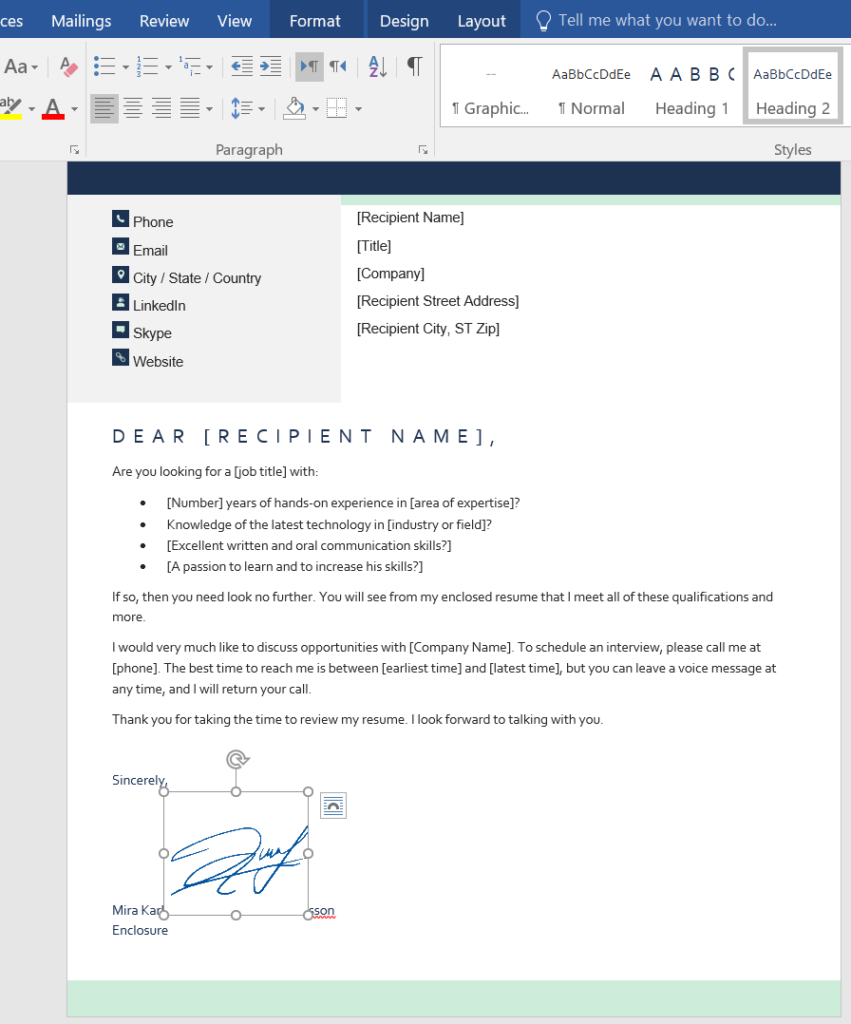
Insert Signature in Word and google docs for both choose your signature PNG and then click Insert. Once the picture has been selected, open the Picture Format tab and select Wrap Text, choosing In Front of Text. Drag the signature to the line and resize it using the corner handles. Move away from the picture and zoom to examine the sides. That is the entire process of inserting signature to Word document files. People tend to forget the wrapping step, that is why when moving the signature, all the text is pushed down.
Why the Wrapping Setting Matters during Insert Signature in Word and google docs?
When you first insert Signature in Word and google docs, they treats it like a very large letter sitting in a line of text. That is called “In Line with Text,” and it makes the image hard to position, because it moves the words around it.
Switching to In Front of Text frees the image from the paragraph. You can then place it anywhere, including right on top of a signature line, without disturbing a single word. If you would like the signature to stay with a certain paragraph when you edit, Square or Tight wrapping can also work, but In Front of Text is the simplest for signatures.

Signature Line VS Signature Picture in Word
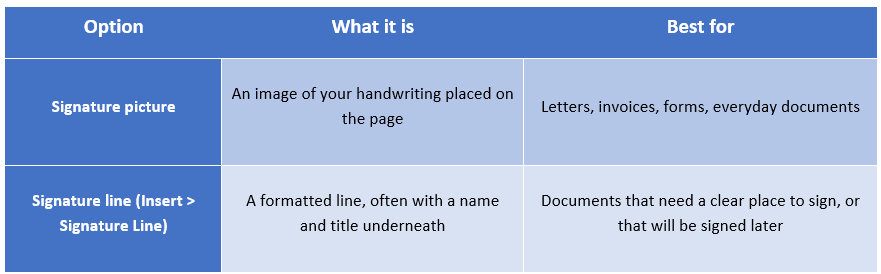
MS Word has two ideas that people often mix up, and it helps to know the difference. You can combine them, add a signature line for structure, then place your signature picture just above it. For most people, the picture is all they need.
How to Insert Signature in Google Docs?
This is as simple with Google Docs which works with any browser.
- Click in the document in the vicinity of the place where you want the signature.
- Click on Insert > Image > Upload from computer and select your PNG.
- Click on the picture, and then select Wrap text or in front of text in the toolbar that appears below.
- Copy the signature and position and size it using the corner handles.
- Use the toolbar to open Image options, if necessary, to adjust the position.
- Make sure to open the document in Google Docs on a phone, tap on the location where you would like to insert the image, and hit the + sign to select the photo from the gallery. It is difficult to place on a small screen, so be sure to consult the page on a larger screen if possible.
Word vs Google Docs: Which Is Better for Signatures?
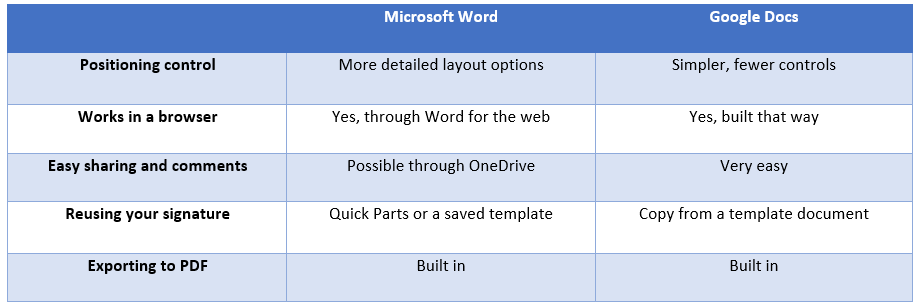
Both do the job well. The best choice usually depends on where your document is going.
If you need precise layout, Word has the edge. If you are collaborating with other people in real time, Google Docs is hard to beat.
How to Save Your Signature after Insert Signature in Word and google docs So You Can Reuse It?
It becomes tedious to re-upload the file every time. It saves a lot of work later on if they are a little set up.
Word: To add a photo to the Quick Parts Gallery, choose your signature photo from the Picture task pane, click Insert > Quick Parts > Save Selection to Quick Part Gallery and give it a name. Next time, it can be inserted from the gallery with just a click. This is an option provided in Word (Windows) and may be different in other versions.
For either program: Create one completed document, e.g. a letter template with your signature. Copy it as many times as you need to create a new document and make the changes to the text.
On your computer: Save a copy of your signature image in a folder that you can easily access, for example signature-transparent.png.
Word Transparent: Fixing the White Box is a software designed to remove the white box from word documents.
Issues
The most frequent issue is that a white rectangle is displayed around the signature. There are typically three reasons for this:
The file is a JPEG: JPEG is not suitable for storing transparency. Avoid sending your signature as an email. Don’t send your signature as a file attached to an e-mail.
Background not completely cut out: Original lighting or shadows are allowed to be present in the image if there are faint shadows. Repeat the photo-taking process under even lighting, and pass it through the extractor again.
The image is wrapped In Line: This does not make a box, but causes the picture to appear misaligned. Click on In Front of Text.
Try it by dropping your name onto a colored shape or shaded table cell. If you see an outline around the ink, the background is not clean, yet. The signature when written in Word transparent should merge with any background.
Common Mistakes When You Insert Signature in Word and google docs.
Even with a few formatting mistakes, a nice document can come across as sloppy.
Stretching the image: The side handles will stretch out your writing when dragged. Resize by the corners.
Making it too big: Typically, a signature about as big as the words around it or a little bigger will look natural. A large one appears nonchalant.
Covering printed text: Make sure the signature does not overlap your typed name or the date.
Using a low-resolution image: The edges of a small photo blown up are jagged. Begin your attack with a clean sweep.
Unlocking in a shared file: If someone else is going to edit the document, save it as a PDF so that the signature will not be accidentally removed. Our guide on how to add signature to PDF without printing shows what to do next.
Is It Safe and Legal to Insert Signature in Word and google docs in this Way?
On the secure end, a signature image is individual information. Do not send the raw image if a PDF is the goal, store your master file in a private folder, and verify the length of time any online tool will store your upload.
From the legal point of view, it will depend on the document and the country. These are some typical cases where electronic signatures are acceptable, and an image of your handwriting can be one way to apply one. There are certain documents, though, that require a wet-ink signature, notary, or a certified digital signature, signifying who signed it and if it has been modified since that time. If it is important, ask the organization receiving the document what it accepts. This is a general, not legal, information.
Frequently Asked Questions
How do I Insert Signature in Word and google docs without a scanner?
Take a clear photo of your signature with your phone, remove the background with an extractor tool, and insert the PNG through Insert > Pictures.
Can I Insert Signature in Word and google docs for free?
Yes. Google Docs is free, and you can upload your signature image through Insert > Image. A free extractor can prepare the image.
Why does my signature move the text around in Word?
The picture is probably set to “In Line with Text.” Change the wrapping to In Front of Text to move it freely.
What is the best file format for a signature image?
A PNG with a transparent background, because it avoids the white box that JPEG files produce.
Can I add handwritten signature to Word on my phone?
Yes. The Word app lets you insert a picture from your gallery. For the cleanest result, prepare the image first and position it carefully, ideally checking the result on a larger screen.
Is a signature in a Word document legally binding?
That depends on the type of document and the laws where you live. Some agreements accept electronic signatures, and others require more formal methods, so check with the receiving party.
Last Check List
You’re 60-Second Checklist for Insert Signature in Word and google docs
- Before you send your document, run through this quickly:
- The signature is a PNG, not a JPEG
- Wrapping is set to In Front of Text
- It sits just above the signature line, without covering text
- You resized it from a corner handle
- You zoomed in and the edges look clean
- You exported a PDF copy if others will see the file
Need a clean signature image for Insert Signature in Word and google docs? Upload your photo to our free signature extractor and download a transparent PNG in seconds.
What to read next:
How to Make a Signature Transparent Background