
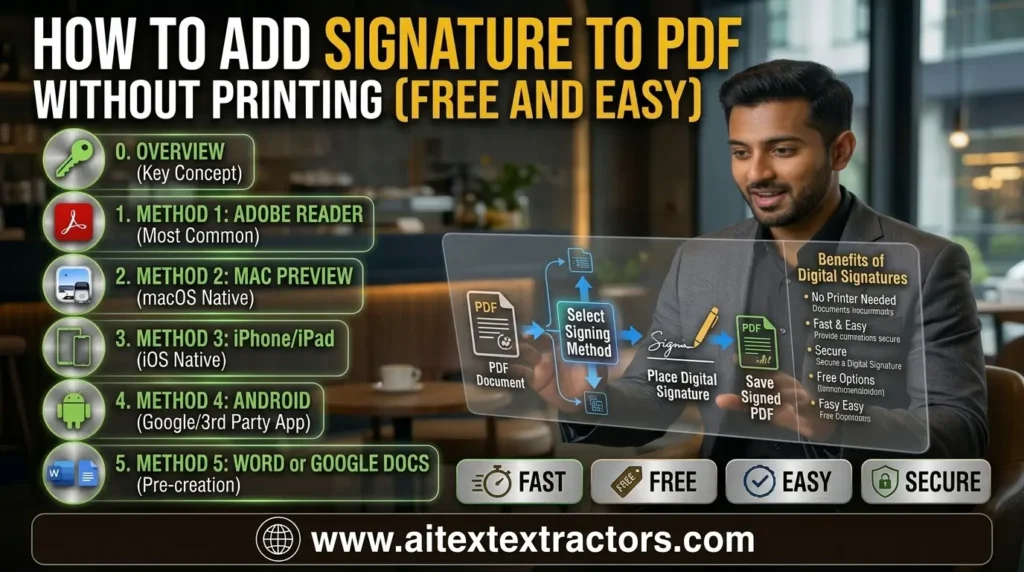
How to Add Signature to PDF without Printing (Free and Easy)
To print out a file, sign it manually and then scan it back into the computer system is a time-consuming method of completing an easy task. Not only does this consume time, but it also wastes papers, ink, and precious hours from your schedule. There is however a better solution to add signature to your PDF in just a few minutes. You can Sign on PDF, Or you can Extract Text from PDF from Free AI Text extractor from PDF and then generate your Digital Signature from Free signature Extractor, and Combine in one word Document then convert to PDF.
In this guide, we will walk through the easiest ways to sign a PDF without printing it, on a computer, an iPhone and an Android phone. We will also cover how to prepare your signature image, how to place it neatly, and what to watch out for. If you’d like to understand how signature images are created in the first place, our complete guide to extracting a signature from an image is a good place to start.
What You Need Before You Add Signature to PDF
There are only two requirements: the PDF file that needs signing, and your digital signature. The former most likely exists, while the latter requires a mere five-minute job to prepare, and only has to be done once.
PNG with transparency is a preferred image format to use. Unlike the PNG file, JPG always comes with a white background, which means that your signature will cover adjacent text rather than fit in between it. If you are not sure how to make one, read our guide on creating a signature transparent background in a few simple steps.
How to Prepare a Clean Signature Image?
A good result starts with a good source. Write your signature on a sheet of white paper with a dark pen and photograph it under an even lighting from directly above with no shadows. It is best to write a little bit bigger than you normally do in order to preserve details when resizing it.
Afterwards, upload the photo to a free signature extractor to remove the paper background and download the file as a PNG. Keep this file somewhere you can find it easily, because every method below uses it.
Method 1: Add Signature to PDF in Adobe Acrobat Reader
You can add signature to PDF in Adobe Acrobat Reader in the following ways. There are two ways to add signature to PDF in Adobe Acrobat Reader:
The most popular option is Adobe’s free reader which supports both Windows and Mac. The names of Menu items may vary from version to version but the concept remains the same.
- To open the PDF file
- Click on Adobe Acrobat Reader.
- Select Fill & Sign from the list of tools.
- Click Sign yourself (or the signature icon) and Add signature.
- Upload your signature PNG
- Click on the Image option and upload your signature PNG.
- Click Apply, then click on the document that you want to sign.
- Pull it to the correct location and adjust its size using the corner handles.
- Save the file.
You can use it again with one click when you sign documents in the future, and it is saved in your account.
Method 2: Insert Signature in PDF on a Mac with Preview
In this method, you will be opening the PDF with Preview on the Mac. In this method, you will open the PDF file using the Mac’s Preview application. For Mac users, there is no need for any additional software as it can do all this in preview.
- Open the PDF in the Preview app.
- Click the Markup toolbar icon (the pen tip in a circle).
- Click the Sign button, then choose to create a signature.
- Select the Camera option and hold your signed paper in front of the webcam or press the trackpad or use an iPhone close by.
- Select the saved signature and drop it on the page then resize it.
The signature is stored in preview, so you will be able to add signature to PDF documents in two clicks next time. Remember, the signature that Preview makes is from a live capture so signing with a dark pen on white paper will yield the best result.
Method 3: Add Signature to PDF on iPhone or iPad
Use Signature on iPhone or iPad to add signature to PDF. If you are sent a document from someone and need it back soon, you can sign directly from the Files app
- Open the PDF in Files or Mail.
- Click the Markup icon.
- Click on the plus (+) icon and select Add Signature.
- Make a signature using your finger or add one that was saved.
- Tap it on the signature line, resize and tap Done.
For those who want to use their scanned image, you can add it in as a picture using the same Markup menu on many versions of iOS.
Method 4: Add Signature to PDF on Android
There is no single built-in signing tool for add signature to PDF in Android, but an Android app with similar features is available and free.
- Apply a reliable PDF software, like Google’s own tools, or Adobe Acrobat Reader.
- Open the document and tap the pen or Fill & Sign icon.
- Then click on Create signature and draw it, or import from your gallery.
- Place it on the signature line and save the PDF file.
Check out the reviews and permissions of any app before installing. A PDF reader should not try to access irrelevant information.
Method 5: Use Word or Google Docs, Then Export to PDF
If you did write the document, there is an even easier way. Open the file in Word or Google Docs, insert the signature PNG as an image and select the “In Front of Text” text wrap option and drag it to the signature line. Finally, save the document as a PDF file. The best way to add signature in PDF files you have created is this way because you have complete control over the layout. Secondly, you can extract text from a PDF, digitize your signature, and paste the text into MS Word. Then, add the PNG signature to the document and convert it back to PDF.

Which Method Should You Choose?
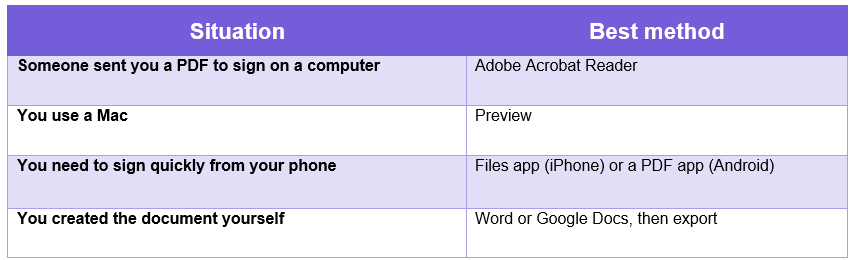
Whatever you Use always save one master signature file and use the same one everywhere. That keeps your signature consistent across all your paperwork.
How to Place and Size Your Signature Properly
Where you try add signature to PDF it’s matters as much as how you add it. A few habits make the result look professional.
Sit it on the line: The bottom of the signature should rest just above the signature line, not cover it.
Keep the proportions: Always resize using the corner handles. Dragging the sides stretches your handwriting and makes it look unnatural.
Match the scale: The signature should be about the same size as the printed text around it. Too large looks careless, and too small is hard to read.
Leave space: Make sure it doesn’t overlap printed names, dates or other fields.
Zoom in and check: View the page at 200 percent to confirm the edges are clean and nothing is cut off.
Common Mistakes When You Add Signature to PDF
Small errors can make a signed document look rushed or, worse, cause it to be rejected.
Using a JPEG signature: The white box shows up and covers the text. Use a transparent PNG instead for add signature to PDF.
Signing a flattened scan the wrong way: If the PDF is just a picture of a page, make sure the signature lands in the right place before you save, because it may be hard to move later, it is important when you add signature to PDF.
Forgetting to save: Some apps place the signature but keep it editable until you save or flatten the file.
Using a blurry image: A low-quality photo produces rough, pixelated strokes. Retake it in better light.
Sharing the original signature file widely.:Send the signed PDF instead of the raw image whenever you can.
Is It Safe and Legal to Sign a PDF Without Printing?
Safety first, your signature image is personal data, so keep your master file in a private folder or a password-protected drive. Before you upload it to any online tool, check how long the service keeps your files and whether it deletes them after processing. Our guide on using a signature extractor safely covers this in more detail.
As for legal validity, it depends on the document and on where you live. In many places, electronic signatures are accepted for a wide range of everyday agreements, and an image of your handwritten signature can be one way to apply one. However, some documents may require a wet-ink signature, a notary, or a certified digital signature that verifies who signed and whether the file was changed afterwards. When it matters, ask the organisation receiving the document what it accepts. This is general information, not legal advice. Add signature to PDF by using any method is risky without Safety or Privacy.
Tips for a Professional-Looking Signed PDF
- Create your signature image once, and reuse it everywhere.
- Name the file clearly, such as signature-transparent.png, so you can find it later.
- Save a copy of the signed PDF with a new name, and keep the unsigned original.
- Flatten or lock the PDF if you don’t want anyone to move the signature afterwards.
- Take a moment to read the whole document before you sign it. A neat signature on the wrong version helps nobody.
Final Thoughts
There is no need to print, sign and scan anymore. Once you have a clean signature PNG, you can add signature to PDF documents on a laptop or a phone in under two minutes. Prepare the image once, pick the method that suits your device, and always zoom in to check the result before you send it.
Ready to get started? Upload a photo of your signature to our free signature extractor and download a clean, transparent PNG in seconds.
Frequently Asked Questions
Can I add signature to PDF for free?
Yes. Adobe Acrobat Reader, Mac Preview and the Files app on iPhone all let you sign a PDF at no cost, and a free extractor can prepare your signature image.
How do I sign a PDF without printing it?
Create a digital copy of your signature, open the PDF in a reader that supports Fill & Sign or Markup, and place the image on the signature line. Then save the file.
What is the best format for a signature image?
A PNG with a transparent background. It sits cleanly on the page without a white box around the ink.
Can I add signature to PDF on my phone?
Yes. iPhone and iPad users can sign through Markup in the Files app, and Android users can use a PDF reader that offers a signing tool.
Is a signature image the same as a digital signature?
No. A signature image is a picture of your handwriting. A digital signature uses certificates to verify the signer and detect later changes. Some documents require the second type.
Can someone copy my signature from a signed PDF?
It is possible if the file is shared widely. To reduce the risk, share only the signed PDF, avoid posting it publicly, and keep your original image private.