

How to Make a Signature Transparent Background
You signed a form on paper, took a photo of it, and dropped the picture into your invoice. Now there is an ugly white box around your signature, and it is covering part of the page. Sound familiar?
The fix is a file with a signature transparent background, a PNG where only your ink shows and the paper simply disappears. In this guide, we will show you how to get a signature transparent background in a few minutes, what to do when the result looks rough, and where to use the file afterwards. If you would like the bigger picture first, our complete guide to extracting a signature from an image explains how the whole process works.
What Does a Signature Transparent Background Actually Mean?
A transparent signature refers to an image whose background does not contain any color but only the ink of the signature. When superimposed over a blank page, colored header, or even over a table, then you will see through the areas without color as it would appear when a signature is put on the paper.
This is achieved using the correct format. The JPEG format cannot support transparency in any way. Even with a completely white background, the signature will have solid pixels. The PNG format, however, contains an alpha channel, which basically controls which parts of the signature are transparent.
Why a White Box around Your Signature Looks Unprofessional?
It is a small detail, but it draws the reader’s attention. In this scenario, a signature inserted in a white box crosses the borders of the table, obscures the printed lines, and hides some of the text underneath it. On a colored letterhead, this box becomes noticeable as a whitish rectangle that does not quite fit there.
Moreover, the trust aspect should be considered. A neat signature that blends well into the document makes the impression of a thoughtfully written document. A signature inserted in a box looks hastily pasted. While it may not be of any significance on an informal note, for a professional document such as a client proposal, job application, or business contract, it plays a definite role. A signature transparent background removes the problem entirely, because nothing except the ink ever lands on the page.
What You Need Before You Start?
The quality of your result depends heavily on the photo you begin with. A few minutes of preparation saves a lot of time.
A dark pen: Black or dark blue ink gives the strongest contrast. Pale pens and pencils tend to produce thin, broken lines.
Plain white paper: Lined, colored or textured paper makes it harder to separate ink from background.
Even light: Daylight from a window works well. Avoid casting your own shadow over the page.
A steady phone: Hold the phone directly above the paper, not at an angle.
Sign a few times and keep the cleanest one. It is worth the extra ten seconds.
How to Make a Signature Transparent Background with a Free Tool?
This is the quickest route for signature transparent background, and you do not need any design skills. These steps use our free signature extractor, but the process is similar in most online tools.
- Snapshot or scan your signature. Follow the above preparation steps. Crop as much blank area of the sheet as possible.
- Open the Tool and upload the image file. The most popular format options include JPG and PNG files.
- Select the signature. The program analyzes the ink and splits it from the paper surface. Usually, it is accomplished within several seconds.
- Magnify the preview and make sure that all contours are sharp and complete. In particular, pay attention to thin lines and the edges of letters.
- Save the output as PNG. Remember, you should not select JPEG format here because the transparency will be lost.
- Test the result. Drop the file on some colored background. In case the ink is surrounded by a thin white line, take another snapshot under better light conditions.
If your signature is inside a scanned contract rather than on its own sheet, take a look at how to extract a signature from a PDF first.
How to Check That Your Signature Is Really Transparent?
Do not think always your signature transparent background worked. A quick test takes less than a minute and it is important so it can save you an embarrassing moment later.
Use a colored background: Insert the PNG into a Word, Google Docs or PowerPoint page that has a colored shape or a shaded cell behind it. If you see a white or pale outline around the ink, the background was not removed completely.
Look for the checkerboard: Many image editors show transparent areas as a grey and white checkerboard. If your file opens with a solid white background instead, it was probably saved as JPEG.
Check one more time before you send and use: If anything looks off, go back to your original photo and run it again with better lighting.
Other Ways to Remove a Signature Background
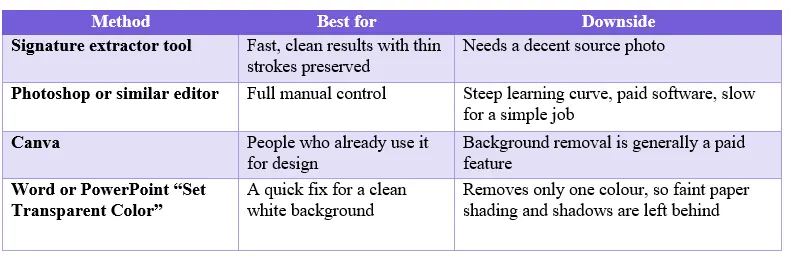
A dedicated extractor is not your only way to get a signature transparent background. Here is how the common methods compare.
Make a Signature Transparent background on Your Phone
A signature transparent background can be made completely using your phone. Make use of the existing scanner, Notes app for iPhone and scan feature on Google Drive for Android phones and scan the paper. It automatically straightens the page and increases the contrast. Upload the scanned image on the extractor via your mobile browser and download the PNG.
Two minor changes can help get the best results. First, make sure that your signature is slightly bigger than usual since details can be easily scaled down but not up. Secondly, scan your signature two or three times and select the sharpest one.
Best Size and Quality Settings for a Signature PNG
A signature transparent background file does not need to be huge, but it does need to be sharp. These practical guidelines work for most situations.
Solution: Take a picture of your signature using good or higher resolution. This provides enough quality for the software to preserve thin lines and enough room for you to enlarge it without blurring.
Dimensions: Several hundred pixels wide is adequate for emails, Word documents, and invoices. If you have plans of printing the signature in larger dimensions, you should also maintain a high-resolution version.
Size: A clean PNG signature is always fairly small, typically under a few hundred kilobytes. It helps keep the size of email footers small and reduces loading time.
Color: It is better to use dark color ink and a transparent background. Black or very dark blue will blend well with both light and white backgrounds. Pale ink color might disappear on a colored background.
Maintain one master copy in a large format and then create smaller ones from it as necessary. Shrinking images is fine, while enlarging usually makes the borders blurry.
Common Problems with a Signature Transparent Background and Fixes
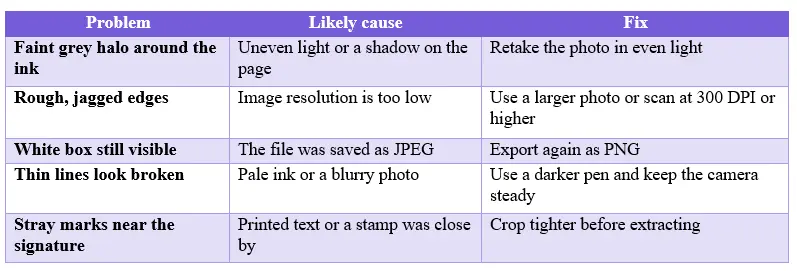
During making signature transparent background, Most issues trace back to the original photo, not the tool. If the problem is a blurry original, no tool can truly invent the missing detail. Start with a sharper photo and the rest becomes much easier.
Mistakes to Avoid When Making a Transparent Signature
Most poor results when creating a signature transparent background come from a handful of avoidable habits.
- Taking photos at an angle: The angled phone stretches out your signature and distorts the signature strokes. Always take the photo from above the paper.
- Choosing lined or tinted paper: Lined paper and tints in paper create problems in the detection stage, leaving some spots visible.
- Exporting the file as a jpeg format: With only one error, the white box is right back. Remember to always export in PNG format.
- Resizing the signature picture: Pulling handles on the side changes the proportions of your signature. Instead, resize the signature by pulling handles from corners.
- Skipping the last check: Always check how it looks on a tinted background before using in a document.
- Cropping too much: Always keep some margin around the signature stroke so that it does not get cropped.
Where to Use Your Transparent Signature
Once your signature transparent background file is ready, it works almost anywhere:
Word and Google Docs: Insert it as a picture, set text wrapping to “in front of text” and drag it onto the signature line.
PDFs: Add it through a PDF reader’s fill and sign feature.
Emails: Place it in your email footer so messages look professional.
Invoices and proposals: Save it once and reuse it in every template.
Certificates and letters: It sits cleanly over borders, logos and colored backgrounds.
Always resize image from the corner handles, not the sides, so your signature does not stretch.
How to Store and Protect Your Signature File?
A signature image is personal, therefore give it a little attention. Once it becomes easily copyable and pastable, it can be easily misused by another person.
- Store the original file at a secure location, for example, at a password-protected cloud drive or a privately owned computer instead of keeping it at a publically available computer.
- Do not send the file when it can be replaced by a PDF. In most cases, you can simply embed the signature in the document and then send the PDF instead of sending the file itself.
- Make sure that there is no trace of your test files. Remove them from your download location and delete from any device which you do not own.
- Be informed about the privacy policies of the software you are using. Make sure that how long the service will keep your files before deleting them.
In case of leakage of your signature file, make the concerned authorities aware.
Frequently Asked Questions
Why does a signature need to be PNG and not JPEG?
PNG supports transparency and JPEG does not. With JPEG, the background is saved as solid colour, which brings the white box back.
Can I make a signature transparent for free?
Yes. A free online extractor can remove the background and give you a transparent PNG without any software to install.
What size should my signature PNG be?
For most documents and emails, a width of a few hundred pixels is enough. If you plan to print it large, start from a higher-resolution scan so it stays sharp.
Can I change the colour of my transparent signature?
That depends on the tool. Many image editors can recolor a PNG, and some extractors include colour options. Dark ink on a transparent background is the safest choice for documents.
Is a transparent signature image legally valid?
It depends on the document and your country. Some agreements accept electronic signatures, while others need a wet-ink signature or a certified digital signature. Check with the organization that will receive the document. This is general information, not legal advice.
Summary
A signature transparent background takes only a few minutes to create, and you only have to do it once. Sign on white paper with a dark pen, take a sharp photo in good light, upload it, and export as PNG. After that, you have a reusable file for contracts, invoices and emails.
Ready to create your signature transparent background? Upload your photo to our free signature extractor? Upload your photo to our free signature extractor and get your transparent PNG in seconds.
Pingback: How to Insert Signature in Word and Google Docs (Step by Step) - aitextextractors.com
Pingback: How to Scan Signature on Phone (iPhone and Android Guide) - aitextextractors.com
Pingback: Application Form Signature: Size, Format and Upload Complete Guide - aitextextractors.com
Pingback: How to Cut Out a Signature from Any Image or PDF - aitextextractors.com