

How to Extract Text from Image Online
Images are everywhere, screenshots of a conversation, a scanned contract, a photo of a whiteboard after a meeting, or a quote saved from social media. Many people confused how to extract text from image online. The problem is that text inside an image is locked. You can’t select it, copy it, or search for it, because to a computer, it is just pixels, not letters.
That is where learning how to extract text from image online becomes genuinely useful. Whether you are a student digitizing notes, a business owner converting paper records, or someone who just wants to quickly copy a sentence from a screenshot, knowing how to extract text from an image online saves you from retyping everything by hand.
This guide walks through every practical way to extract text from image online from the fastest one-click method, to built-in options on your phone or laptop, to what to do when the results come out messy. By the end, you will know exactly which method fits your situation.
Why you would want to Extract Text from Image online
Before diving into the “how,” it helps to understand the “why” because the right method depends on your specific use case:
Screenshots: saving a WhatsApp message, tweet, or Instagram caption and needing the actual text, not just the picture
Scanned documents: old paperwork, contracts, or receipts that exist only as scans or photos
Study material: textbook pages or lecture slides photographed on a phone
Signage or printed material: a phone number, quote, or recipe photographed while out and about
Business records: invoices and forms that need to be searchable or editable
Each of these has slightly different needs, which is why this guide covers more than just “the one tool” it covers the full range of ways to extract text from image online, plus tips to make the results more accurate.
Method 1: Use a Free Online OCR Tool (AI Text Extractors)
The quickest way to extract text from image online is through a browser-based OCR tool. No downloads, no installation just upload and copy or download text..
Step 1: Pick a Solid and Reliable Tool
Start by searching for “extract text from image online,” and you’ll find plenty of choices. Your best bet is to pick a tool that is genuinely free not hiding behind a free trial, doesn’t force you to sign up, and clearly lists the file formats it handles. A tool like AI Text Extractor works really well here it runs right in your browser, handles JPG, JPEG, PNG, and PDF files, and lets you extract text from image online files without needing to create an account first.
Step 2: Upload Your Image
Most platforms give you a couple of convenient ways to upload your file:
Drag and drop: Drag the image file straight into your browser window.
Browse your device: Click the upload button to select a file from your device storage.
Paste directly: Use Ctrl+V to paste an image straight from your clipboard.
Having these quick upload options makes a big difference. For instance, if you just grabbed a quick screenshot or pfd, pasting it directly saves you the annoying extra step of saving the file to your drive first.
Step 3: Let the Tool Process the Image
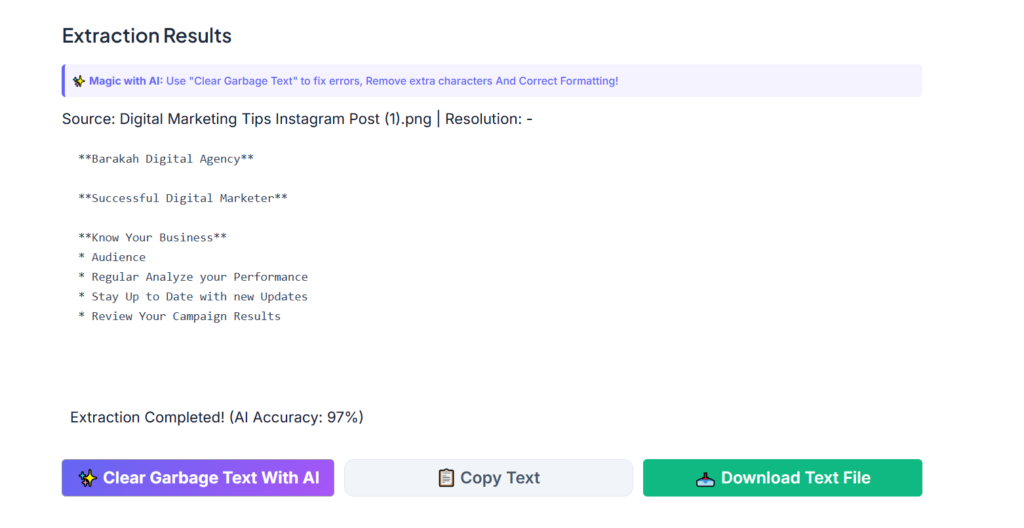
Right after you upload, the extract text from image online tool gets to work scanning the image. It pinpoint text areas using OCR combined with AI, which keeps accuracy high even when you are dealing with screenshots, PDF files, social media posts, low-contrast scans, or slightly angled photos. The whole scan usually wraps up in just a few seconds.
Step 4: Copy or Download the Extracted Text
As soon as the processing wraps up, your text will pop up in an editable box. From there, you can:
Copy the text straight to your clipboard.
Download it as a clean, plain text file.
Use a built-in cleanup feature if the tool offers one, to instantly fix broken characters or strange formatting.
Top tier tools often include a cleanup or “clean garbage text” feature for a reason raw OCR scans can occasionally spit out random symbols or odd line breaks that need a quick polish before the text is ready for real use.
Method 2: Extract Text from Image Online Using Google Docs
If you already use Google Drive, this built-in trick lets you extract text from image online without any third-party tool:
Upload your image to Google Drive
Right-click the file and select open with
Choose Google Docs
Google Docs will open a new document with the image at the top and the extracted text below it. This method works reasonably well for clean, printed text, but tends to struggle more with screenshots, stylized fonts, or lower-quality scans compared to a dedicated OCR tool.
Method 3: Extract Text from Image Online Using Microsoft OneNote
If you have Microsoft Office, OneNote includes a built-in OCR feature that works offline, useful if you don’t want to upload anything online:
Open OneNote and insert your image (drag and drop works)
Right-click the inserted image
Select Copy Text from Picture
Paste the result anywhere using Ctrl+V
Because it runs locally, this method is a solid choice for anyone who prefers not to upload sensitive documents to a website though it does require having Office installed.
Method 4: Extract Text from an Image Online on Your Phone
You don’t need a computer to extract text from image online most modern phones can do it directly:
On iPhone: Open the photo, tap the small text-selection icon that appears when text is detected (this uses Apple’s Live Text feature), then select and copy the text directly.
On Android: Open Google Photos, tap the photo, and use the Search image with Google Lens or the text-scan option detected text can be selected and copied the same way.
Using a browser on mobile: If your phone doesn’t support built-in text detection, you can simply open a mobile browser, go to an online extraction tool, and upload the photo the same way you would on a desktop.
Method 5: Extract Text from a Screenshot Specifically
Screenshots deserve their own mention because they behave differently from photos, the text is usually sharp and high-contrast, which actually makes them easier to extract from than a photo taken with a camera. The catch is that screenshots often include extra visual clutter like app interfaces, icons, backgrounds, that is not part of the text you actually want.
For best results with screenshots:
Crop out unnecessary UI elements before uploading, if possible
Use a tool that is specifically been tested on screenshots, since not every OCR engine handles interface fonts and small text sizes equally well, AI text extractor worked perfectly with screenshots.
Run the output through a cleanup step, since screenshots sometimes pick up stray icons or symbols as “text”.
Practical Tips to Get More Accurate Results in Extract text from image Online
No matter which text extraction method you choose, as long as you follow the simple core rules listed below, the accuracy and quality of the extracted text will be greatly improved.
First, lighting must be properly set up. Bright, clear lighting can produce vastly different outcomes; if the lighting in the source material is inadequate, it will be difficult to remedy no matter how you adjust it later. Heavy shadows or reflections in the footage are almost always the primary cause of misrecognized letters and numbers. When originally clear characters are obscured by shadows or blurred by reflections, extraction tools cannot accurately identify the content.
Next, for the clarity of the source material, select material with as high a resolution as possible. Only images with sufficient resolution can capture the fine details of the edges and corners of characters. For sharp, clear images, the text results extracted each time will be cleaner and more orderly, with no missing characters or confusing similar-shaped symbols. A blurry, pixelated photo will always give any extraction engine a hard time, no matter how advanced the tool is.
Some tricks to get better results from extract text from image online Tools!
No matter what path you choose to follow, there are certain best practices for real work that will definitely increase the accuracy of the text you are going to extract:
Well lit: The light plays an important role here. Deep shadows and/or glare typically cause misread letters and numbers.
Search for greater resolution: Clear, legible photos give more accurate results on the first try. No one can get something useful from the pixelated, blurry image.
Straighten the photo: Before you process the photo, make sure to straighten any tilted or angled photos. Devices for scanning have serious problems recognizing slanted text.
Crop the noise: Remove the unnecessary backgrounds/noise and crop the text part carefully. You want to clear all the unnecessary stuff and avoid distracting visual noise.
Check the results: Always check the extracted text quickly. It is possible that even the best program may replace similar characters, say, letter ‘O’ with the number ‘0’, so quick check will save you a lot of work.
Uses of text extraction from images in the real world
The online text extraction from image is not just a cool feature but it can be useful in many different situations when you need to recognize the text in the picture:
For business
For businesses that use paper invoices, receipts or contracts, migration to electronic documents will make it possible to get rid of additional data entry, and transform the pile of paper into the searchable, editable information.
For students
Images of text pages, notes on the whiteboard or projected slides can be transcribed into text to help with studying, highlighting, and copying and pasting into notes app, instead of typing paragraphs manually.
For content creators and social media users
The app can be used to create screenshots of the quotes and convert them into the text form for reposting/quoting/referencing without retyping the text content.
For completing tasks that involve data entry. Text from forms and receipts can be extracted instead of being typed into the spreadsheet.
Frequently Asked Questions
Is it free to extract text from an image online?
Yes many tools let you extract text from image files at no cost and without creating an account. It’s worth confirming a tool is genuinely free before uploading, since some only offer a limited free trial.
Which image formats can be used for text extraction?
Most tools support JPG, JPEG, and PNG at minimum, with many also supporting PDF files for scanned documents.
Does extracting text from a screenshot work the same as from a photo?
Mostly yes, though screenshots tend to produce cleaner results since the text is sharp and high-contrast compared to a photo taken with a camera in variable lighting.
Is it safe to upload images to an online text extraction tool?
Reputable tools process the file temporarily and don’t store it permanently. If privacy is a concern, look for a tool with a clearly stated no log or zero retention policy, or use an offline method like OneNote instead.
Can I extract handwritten text from an image?
Some advanced tools can, but accuracy on handwriting is generally lower than on printed or typed text, since handwriting styles vary so much from person to person.
What is the fastest way to extract text from image online?
A browser based OCR tool is almost always the fastest option, since it requires no downloads or account setup you upload the image and get text back within seconds.
Final Thoughts
Knowing how to extract text from image online can become one of those handy every day skills you’ll be using all the time, such as screenshots, scanned documents, study notes, or any image where there is text that feels trapped. For everyday usage, a simple web based solution such as AI Text Extractor is likely the easiest to use: there are no registrations, no cumbersome software to install, just upload the file, grab the text, and start working.
The time consuming task of retyping text from images is over, whether you’re using a fast Web based service, a built-in tool such as OneNote, or the built-in text recognition that’s available in your smart phone. Simply choose whichever one is most convenient for your workflow, and you’ll be able to extract text from image online in seconds as opposed to minutes.