
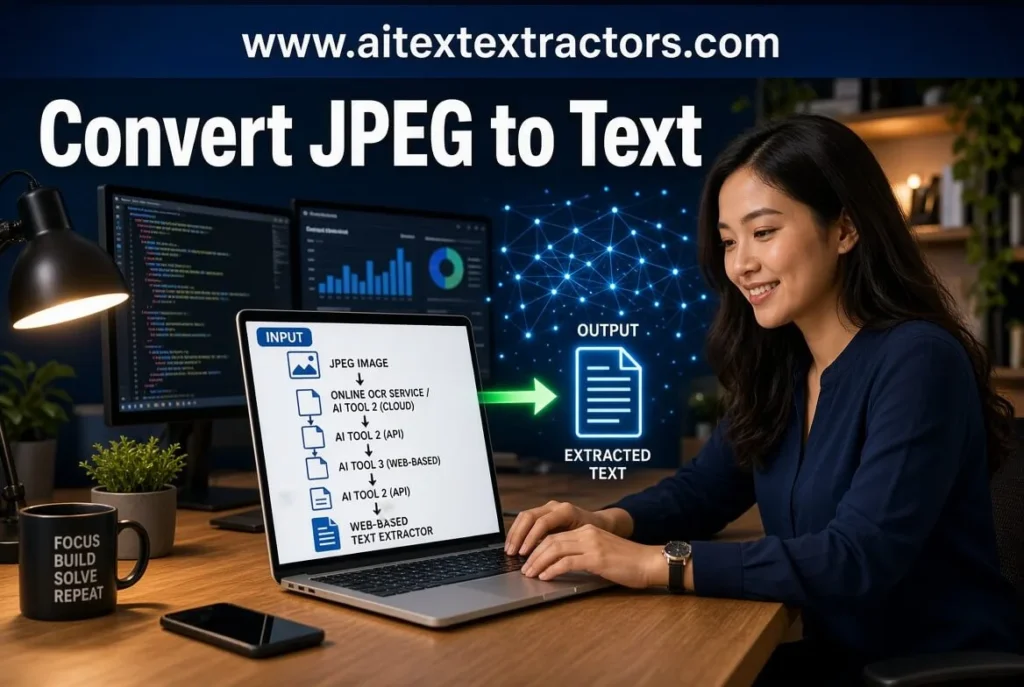
Convert JPEG to Text Free Tool
Why convert JPEG to Text? Images are now a common way to store and share information. People take photos of documents, save screenshots scan books capture receipts, and receive important information in image formats every day. JPEG is one of the most popular formats because it offers good visual quality while keeping file sizes manageable. However, there is one major limitation: the text inside a JPEG image cannot normally be selected, copied, or edited like ordinary digital text. This is where Optical Character Recognition, commonly known as OCR, becomes useful.
With OCR technology, users can Convert JPEG to Text and transform words inside an image into editable digital content. This makes information easier to copy, search, edit, organize, and share. Whether you are a student, researcher, office employee, business owner, or casual internet user, understanding how image to text conversion works can help you save time and avoid unnecessary manual typing.
What is JPEG to Text Conversion?
People Convert JPEG to Text are basically asking an OCR system to recognize the characters that can be seen in a JPEG image and return a digital copy of them as text. In a JPEG, letters are not stored as individual letters that can be edited. Instead, the whole document is represented as pixels.
An example of this is that you take a photo of a printed page, your phone will save the page as an image. Although you can see all the words clearly, your computer does not identify them as words. OCR reads the image in a way that recognizes the visual patterns and identifies the words, letters, numbers, and punctuation in the image. After the recognition, the extracted content can typically be copied to a text editor, word processor, email, spreadsheet, or other application. The process is a simple one that can help make information based on images much more useful.
Why Convert JPEG Image to Text?
If you have a picture that is too large to be displayed as text in a Word document, you can convert JPEG to Text. The primary benefit is time saving. Envision being sent 10 pages of print data as pictures. It would take hours to type all 10 pages. Much of this work can be done automatically by OCR.
Students can convert images to text to obtain data from the pages of the textbook and lecture notes, as well as from educational resources. Historical documents can be scanned and searched. Invoices and receipts, forms and printed records can be used to get information from the business. This text extraction can work well for content creators, as well. When you have important information in an image only, you can convert it to a text version that can be copied, restructured, paraphrased or saved for later.
One advantage is that it is accessible. Digital text can be magnified, searched, translated, copied and processed by other software applications. This makes the removed content much more versatile than content in the form of an image.
How to Convert JPEG to Text Online
An online converting service is a very simple method of converting a JPEG to text. This tool are made easy, even for those with limited or no technical expertise.
Typically, the user uploads a JPEG image and initiates the recognition process. The OCR engine reads the image and shows the text that it recognizes. This will depend on the platform, and the outcome can be downloaded or copied. This Tool is easy to use and free of cost, no payment methods required.
Common steps in a process are:
- Pick a JPEG image that has readable text on it.
- Put the image into an OCR-based application.
- Start the Extraction process.
- Wait for image analysis to be complete.
- Examine what has been retrieved.
- Copy the Text or Download txt file.
The innovative use of a Smartphone for Text Extraction
Thanks to the smartphone, OCR is now much easier in that almost all people have a high-quality camera. You can take a picture of a printed page, save it as a JPEG image and then run an OCR application or online OCR service on the image. If you need to Convert JPEG to Text on a mobile device, attempt to take the picture in good lighting. Do not move the phone and ensure that the entire page is visible. Do not use strong shadows, reflections or extreme camera angles.
It is also recommended to lay the document on a flat surface. A straight image provides clearer context to OCR software for determining both the characters and their location. After the text is extracted, you can copy and paste the text into your notes, email, messaging app, document editor or cloud storage. This is especially convenient for students and professionals travelling and working.
Converting Scanned Documents
Another significant use of OCR is for scanning documents. A scanner can also produce digital copies from paper documents, but the output file could be an image only. It is possible to read the text but typically not possible to select single words.
Convert JPEG to Text: OCR adds a digital text layer with the visual information. This enables you to search through the document and edit extracted text.
This can simplify document management for offices that have an abundance of scanned paperwork. Employees can perform a search of the images for names, dates, reference numbers, or specific terms, rather than opening each image and manually searching it.
Tips for Better Text Extraction
Before you Convert JPEG to Text, improving the quality of your image can make a noticeable difference. Start with the highest-resolution version of the image available.
Make sure the document is properly illuminated and avoid reflections. If you are taking a photograph, hold the camera directly above the page instead of at a sharp angle.
Cropping the image can also help. Remove unnecessary backgrounds, objects, or empty areas so that the OCR system can focus on the actual content.
If the image is slightly tilted, some OCR tools can automatically straighten it. However, taking a properly aligned photograph in the first place is usually better.
After the conversion, always review the output. OCR may confuse similar characters such as O and 0 or I and 1 It may also misunderstand punctuation, symbols, or unusual spacing.
Tips for Students and Researchers
Students often photograph pages from textbooks or classroom materials. Researchers may work with scanned newspapers, historical records, reports, or archival documents.
The ability to Convert JPEG to Text makes these resources much easier to organize. Once the words are available digitally, users can search for specific terms instead of manually looking through every page.
Extracted content can also be added to study notes or research documents. This can make information gathering more efficient and allow users to focus more on understanding and analyzing the material rather than manually typing it.
Researchers should still compare important information with the original source, especially when working with historical documents where unusual fonts, faded ink, or damaged pages can affect OCR accuracy.
Privacy and Security
Before uploading a document to an online OCR service, think about the type of information it contains. Images may include personal names, addresses, financial details, business records, or confidential information.
If you need to Convert JPEG to Text for a sensitive document, check the service’s privacy practices before uploading the file. Some users may prefer offline OCR software when working with confidential business or personal records. It is also sensible to avoid uploading private documents to unfamiliar websites. A reputable service with clear privacy information is generally a better choice.
Common OCR Problems
Sometimes users Convert JPEG to Text and find that the result contains missing words, incorrect characters, or strange symbols. This usually happens because of limitations in the original image or the OCR process.
A blurry image is one of the most common causes. Low-resolution files can make characters difficult to distinguish. JPEG compression can also reduce clarity, particularly when the image has been saved repeatedly at a low quality level.
Complex backgrounds can create another problem. If text is placed over a photograph, patterned background, or colored surface, the OCR system may struggle to separate the letters from their surroundings. Multiple columns and unusual layouts can also cause text to appear in the wrong order. When this happens, improving the image and using a more advanced OCR solution may help.
Is JPEG the Best Image Format?
JPEG is convenient and widely supported, but it is not always the perfect format for text recognition. JPEG uses loss compression, which means some visual information can be removed to reduce the file size.
For ordinary printed documents, a high-quality JPEG is usually more than sufficient. However, screenshots or documents containing very small text may benefit from a format that preserves sharper details. The most important factor is still the quality and readability of the source image. Changing formats cannot completely fix an image that is already blurry or poorly photographed.
Choosing an OCR Tool for Convert JPEG to Text
When selecting an OCR solution, consider your specific needs. If you occasionally need to Convert JPEG to Text, a simple online service may be enough. People who process hundreds of documents may need desktop software or a professional OCR platform with batch processing.
Language support should be checked before choosing a tool, particularly if your documents contain multiple languages. You should also consider accuracy, privacy, file-size limits, export options, and formatting preservation.
A tool with many features is not necessarily the best option. The ideal solution is one that is accurate, easy to use, secure, and suitable for the type of documents you regularly process, and that is AI Text Extractor easy to use and free.
Conclusion
The ability to Convert JPEG to Text has made it much easier to work with information stored inside images. What once required hours of manual typing can now often be completed in a matter of minutes with modern OCR technology.
From students extracting textbook information to businesses processing scanned records, image-to-text conversion can improve productivity and make digital information more accessible. The key is to begin with a clear, high-quality image and carefully review the extracted result. OCR should be viewed as a powerful productivity tool rather than a replacement for proofreading. When accuracy is important, especially for legal, financial, academic, or business information, checking the original image remains essential.
As OCR technology continues to improve, it is becoming increasingly capable of recognizing different languages, complex layouts, and challenging documents. For anyone who regularly works with scanned pages, photographs, screenshots, or other image-based information, learning how to Convert JPEG to Text is a valuable digital skill that can save time and make everyday work significantly easier.