

How to Copy the Text from Image (Every Method That Actually Works)
You have got a screenshot, a photo, or a scanned page, and somewhere inside it is text you need, a phone number, a quote, a paragraph from a document. The problem is you can not just click and drag to select it, because to your computer, that text is just a picture, not actual letters.
Learning how to copy the text from image files properly saves you from the tedious alternative: retyping everything by hand, character by character, hoping you don’t make a typo along the way. The good news is that, there are several fast, mostly free ways to do this. Some built right into your phone, others just a browser tab away. This guide covers every practical method for how to copy the text from image files, whether you are on a phone, a laptop, or dealing with a tricky scanned document, plus tips to get cleaner results and answers to the questions people run into most often.
Why Copy the text from Image Not as Easy as It Sounds
Any image consists of pixels, not letters. So when you see the word “hello” in your screenshot, all your computer sees is a set of colored pixels with no knowledge that they actually form readable text. And to be able to copy the text from image content, some kind of a process has to detect it first. This process is called OCR or Optical Character Recognition.
That is the very reason why it is impossible to highlight text in an image like in a web page. It can only be done once it is converted to a text by an OCR tool. All the methods below solve this problem in a slightly different way.
Method 1: Use a Free Online OCR Tool (Fast and Convenient Method)
This option is usually the fastest way to copy the text from image or pdf files, but not paid. No installation needed only a tab in a browser is.
Steps:
- Open a free OCR tool such as AI Text Extractor
- Upload the image – drag & drop, find on your computer or paste directly from the clipboard
- Let the tool work with the image (only a few seconds needed usually)
- Copy the extracted text, or save it to a file
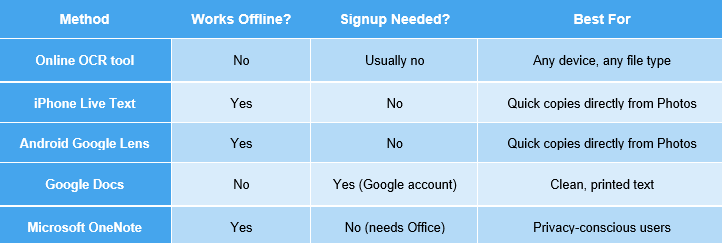
The key benefit of this approach is that it can be used from any device with access to the Internet, phone, tablet or laptop. Almost all tools of this kind are free for occasional use and require no registration to use. Find one supporting image formats you need (JPG, PNG, PDF) and that offers an option to clean the result of conversion.
Method 2: copy the text from image on iPhone (No App, Built-In Feature)
If you have an iPhone with iOS 15 or newer, you can use its Live Text feature to copy the text from image files:
- Open the picture in your Photos app (or take a picture of the text with your phone camera)
- Wait for the small text detection icon to appear
- Tap it or long press right on the text
- Select the necessary part and tap Copy
It works quite well with well-lit images and screenshots and actually one of the fastest ways to copy the text from image content if you are already using your phone.
Method 3: Extract Text from an Image in Android with Google Lens
Android phones have a similar option through Google Lens, which is commonly included in Google Photos:
- Open your image in Google Photos
- Tap on the Lens icon (or “Search image with Google Lens”)
- Google automatically highlights the text in your image
- Select the text and tap Copy
Similar to Apple’s Live Text, this is done directly on the phone without the need to upload the image anywhere, which is quite useful for occasional extractions.
Method 4: Extract Text from Image Using Google Docs
For those who prefer working from computers and already use Google Drive, there’s a handy little trick that doesn’t require any additional tools:
- Upload your image to Google Drive
- Right-click the file and click Open With > Google Docs
- Google Docs creates a new document that starts with the picture and has the extracted text below it
- Just copy and paste the text from the document
The accuracy of this method for clean printed text is decent enough however, it is not very effective with screenshots, unique fonts, or lower quality scans.
Method 5: copy the text from image Using Microsoft OneNote
There is also a handy OCR built-in function in Microsoft Office for Windows users:
- Insert the image in OneNote page (it can be dragged and dropped directly)
- Right-click the image
- Click Copy Text from Picture
- Paste the result with Ctrl+V
This method uses local extraction without sending an image anywhere online, which is nice if you don’t wish to upload images on websites however, the only problem is that it requires Microsoft Office.
Method 6: Extract Text from a Screenshot Separately
A screenshot requires a special mention since they are commonly one of the reasons why people look for ways to copy the text from image files usually it is from WhatsApp, Instagram, Twitter, or a saved chat.
The good news about screenshots is that they are normally easier to extract text from than photos since there is no influence of lighting or camera angle and the text is high-resolution and high-contrast. The only problem with screenshots is that they often have some visual elements other than the text itself. It can be an application interface, some buttons, and background elements. However, cropping the image to the actual text is usually quite helpful
Tips for Cleaner Results When You Copy the Text from Image Files
Whichever method you use, a few habits make a real difference in accuracy:
- Good lighting matters most. Shadows and glare are the single biggest cause of misread characters.
- Use the highest resolution available. A blurry or heavily compressed image will always produce messier results, no matter which tool you use.
- Crop tightly around the text. Removing unrelated background or clutter helps most OCR tools focus on what actually matters.
- Straighten tilted images. Angled or skewed text is harder for any OCR engine to read accurately.
- Double-check the output. Even reliable tools occasionally confuse similar-looking characters (like “0” and “O”), so a quick read-through before using the text catches small mistakes.
Common Situations Where People Need to Copy the Text from Image Files
Saving a quote or caption from a screenshot to repost or reference later. Digitizing an old document that only exists as a scan or photo. Copying a phone number or address from a flyer, sign, or business card photo. Transferring notes from a photographed whiteboard or textbook page. Pulling details from a receipt or invoice for expense tracking or bookkeeping.
FAQs
Can I copy text from the image without using any app or software?
No,as there are not any selectable characters in an image, some kind of OCR (whether a phone’s built-in function, an app or a website) will have to be used in order to copy text from an image.
Is it possible to use free online OCR to copy text the from image files?
Yes, most online OCR tools allow copying text without paying money and creating an account, although some may have certain limitations on the size or number of files you can process per day.
Why do I get wrong characters or text when copying?
That is likely due to poor image quality, blurry, dark and low-contrast images are difficult to recognize for any OCR software. The best solution is improving the lighting conditions of the image you want to copy.
Can I copy text from an image on my phone without being connected to the internet?
Yes, most phones allow copying text from an image offline, as it uses a phone’s processor and not an online service to detect the text in an image.
Are there any differences between copying text from a screenshot and an image?
There are not many differences. Screenshot copies are usually easier to read because of the high contrast of texts within it.
Final Summary
There is no single “correct” way to copy the text from image files, the best method really depends on your device and how often you need to do it. For quick, occasional use, your phone’s built-in text detection is hard to beat. For anything involving screenshots, scanned documents, or a laptop workflow, a free browser-based tool like AI Text Extractor gets the job done in seconds without needing to sign up for anything.
Once you know how to copy the text from image files properly, retyping paragraphs by hand becomes a thing of the past.